How to Claim CME /MOC/SAM Credits from a Session with MOC/SAM
Note: Activities that include CME and MOC Sessions provide the facility to claim CME Credits with or without MOC points.
Also, if you "Check-In" Learners, to the main Session, they will be awarded the credit assigned to the main session and have the opportunity to complete the Self Assessment /MOC session for credit. However, if they should receive only 1 type of credit (i.e. AMA or ABIM) then do not check-in/add to the session attendance.
Log into the CME System with your user details
To claim CME Credits without MOCs Click on 'My Credits'

Click on 'View Available CME Events'

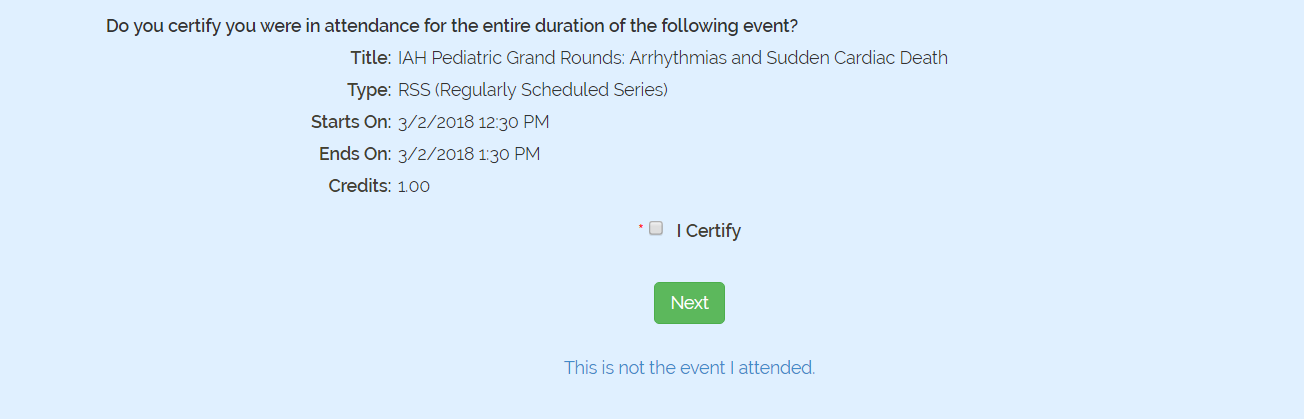
Check the 'I certify' box and Click 'Next'
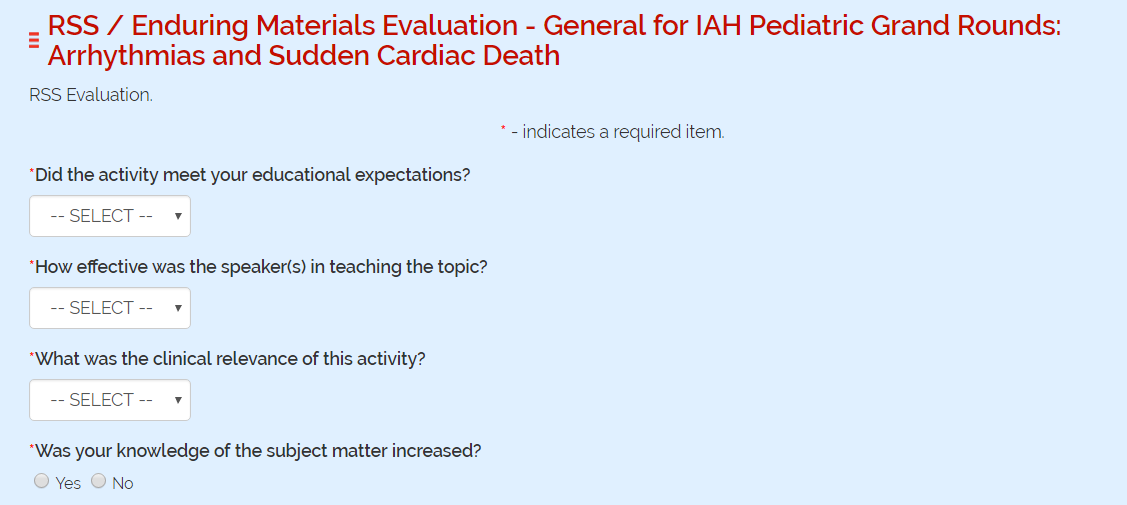
Complete the 'Evaluation' if there is any and 'Submit'
You will be taken to the 'My Credits' page from where you could edit the evaluation if required and 'Print Certificate'. This Certificate will only give you CME Credits without any MOC points.

To claim CME Credits and earn equivalent points towards MOC Click 'My MOCs.'
Click on 'My MOCs'

Click on 'List MOC'

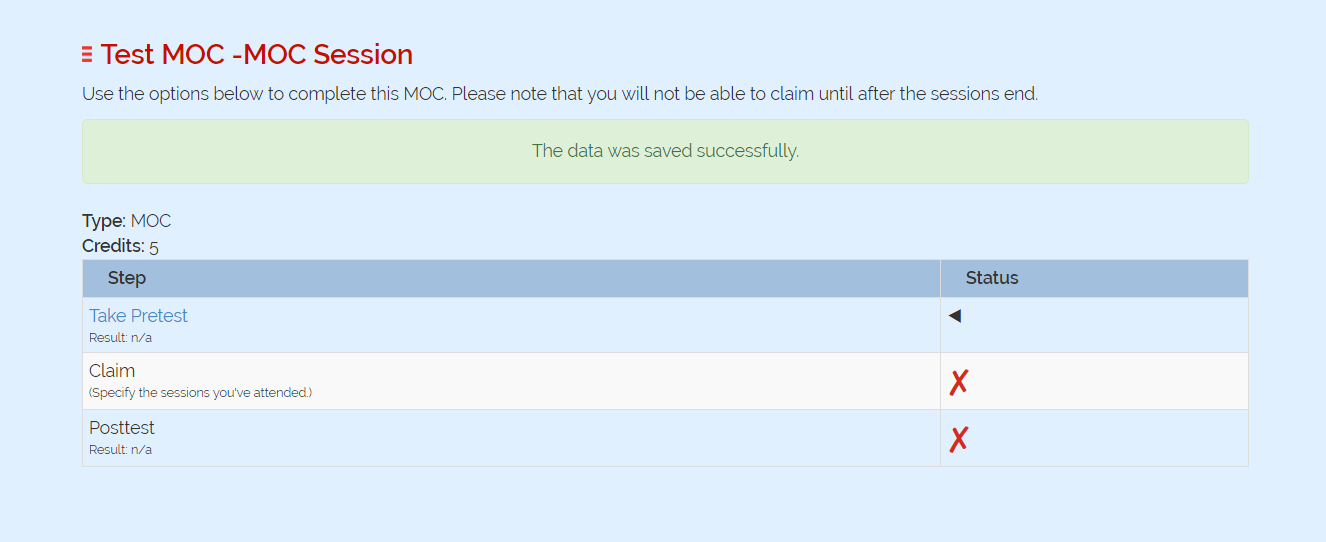
Click on 'Start MOC' next to the MOC Session name.

Take the Pretest if available
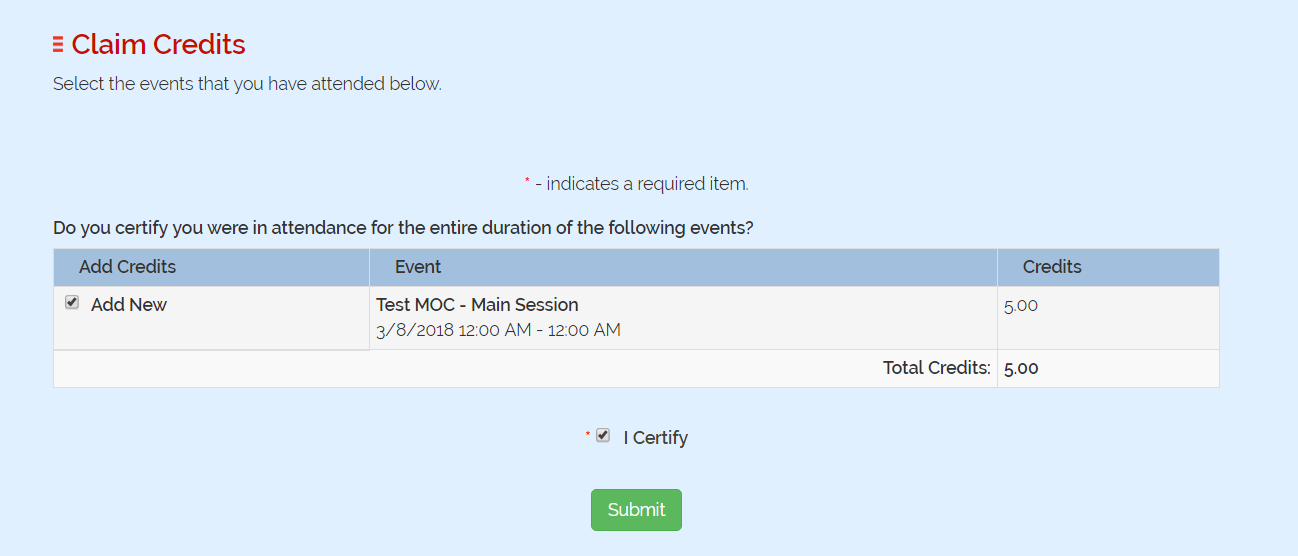
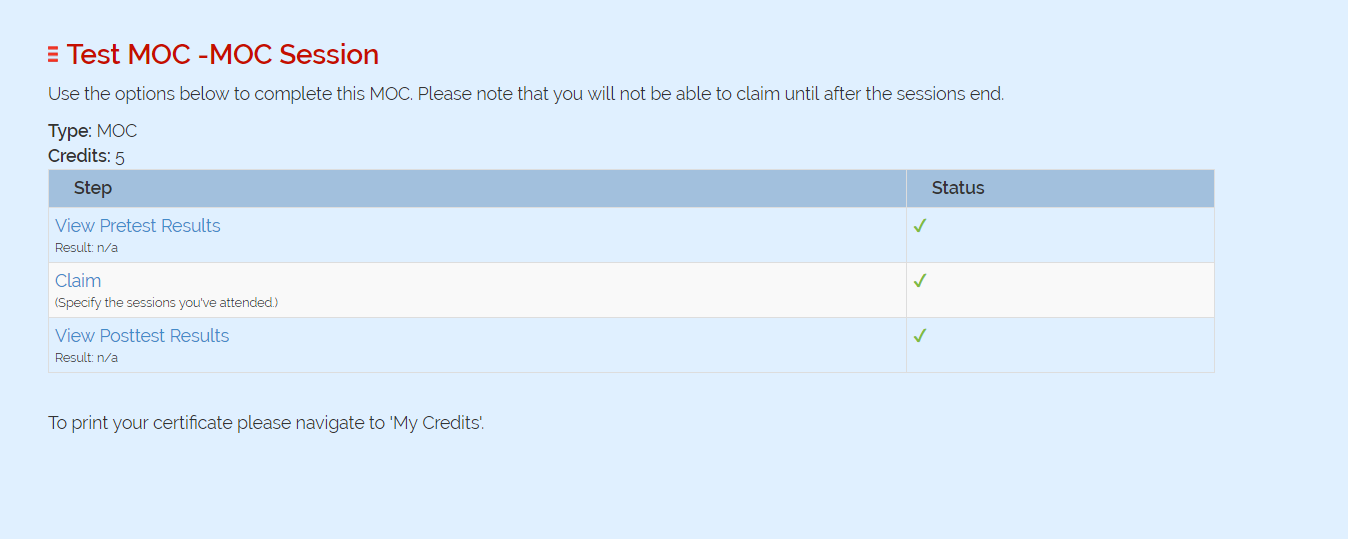
The next step is claiming the credits. When you click 'Claim' you will be asked to add the Sessions which you have attended Check 'Add New', check 'I Certify' and click 'Submit'.
Complete the Post test also. If the session you have attended requires any evaluation 'Evaluations' also show up under the post test.
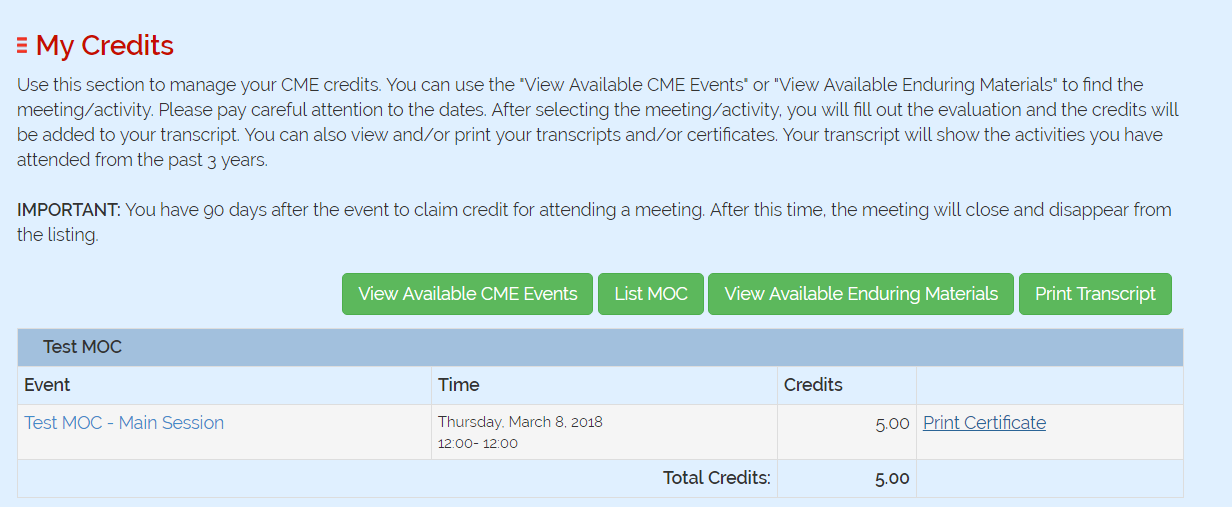
Click on 'My Credits'

The Session you have entered will show up in the list. Click on 'Print Certificate'. Your Certificate will show the no. of CME Credits and the no. of MOC points you can earn from this Activity.
Related Articles
Running Session Attendance Credits Report in Excel
Select the Activity in the Switcher Go to Reports and select Sessions Under CE/CME Reports, select Credits by Session OPTIONAL: Type a portion of the title into the “Title:” field under Primary OPTIONAL: Expand the “Dates/Location” section and for ...Event/Session Type
To add or edit an Event/Session Type, go to Sessions (or Events) and click on 'Session Types' (or Event Types) To edit an existing Type, click on the name of the Type. Or, click on the 'Add New Type' Complete the required fields and click 'Save' ...Creating Activity and Session offering different Credit types and one of them with Self Assessment
When there is no Self Assessment involved every credit including MOCs are treated like any other Credit types. When there is a Session offering two different Credit types, for example AMA and ABIM and you want a ABIM Credit claimers to take a Self ...Add New Session/Event
Note: Prior to adding a Session you need to add the Activity. Select the Activity you want to add a new Session/Event to using the Activity Switcher Go to Sessions (or Events) and click 'Add New' Field Definitions: Type = Select the type of the ...CME settings for Activities are based on the 'Activity Type'
CME settings for Activities are based on the 'Activity Type' 'Registration on' and 'Claim Credit Open Access' fields are located in the Activity > Edit Activity Information ‘Product – Claim Credit Flag’ field is located in the Activity > Manage ...