Claim Credit Tabbed Design
Please reach out to your Project Manager if you would like to update the Credit Claiming page on your site to the new tabbed design.
The new version narrows down the Activity search results such that the attendees could easily identify between the registered & claimed activities vs. open access activities available for claiming.
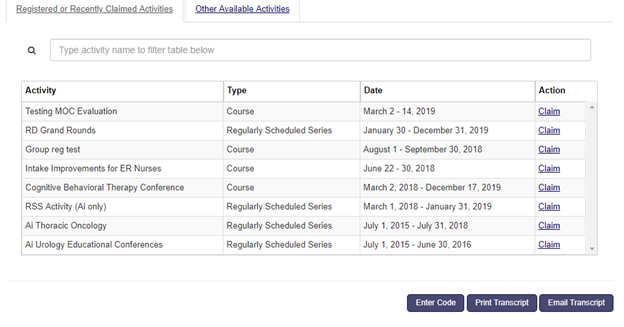
The Registered or Recently Claimed Activities tab lists all the activities the attendees are a part of – either through Activity Registration or having claimed for the Sessions they attended.
This tab lists all the Activities that have either ‘Registration = On’ and the attendee has registered OR the activities for which the attendee has already claimed, regardless of whether the Activity has Registration = On or No.
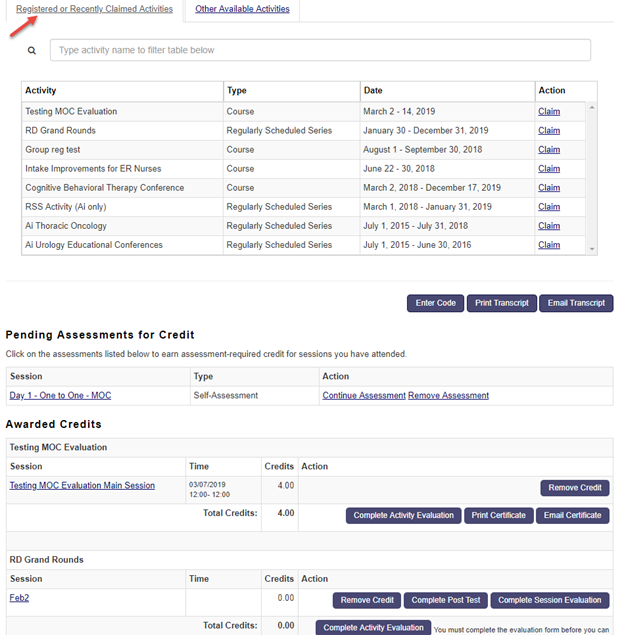
The Activity is listed here as long as the Credit Claiming deadline is open.
For example: As per the screenshot below the user has already claimed for the ‘RD Grand Rounds’, but the Activity is still available in the listing because the claiming deadline is open.
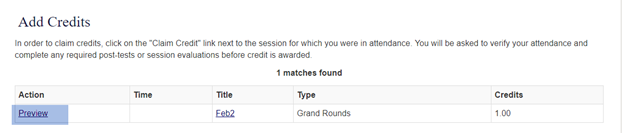
When the user clicks on the ‘Claim’ link for an already claimed Activity they would just see a ‘Preview’ option unlike the ‘Add credit ‘option that is available for unclaimed Sessions.

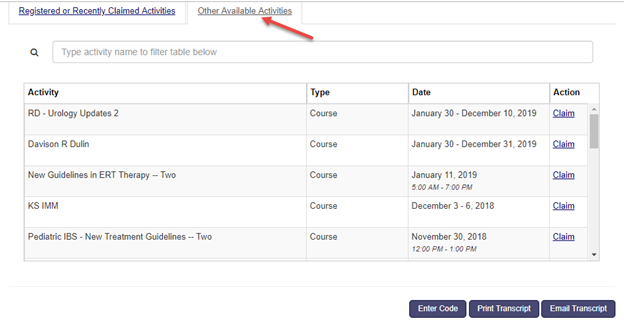
The Other Available Activities tab lists all the activities that are set up as ‘Claim credit open Access = yes’ or the activities that don’t have registration. This essentially means users do not have to be in the ActRegistrant role in order for them to claim for the Sessions they have attended.
Related Articles
How to Claim CME /MOC/SAM Credits from a Session with MOC/SAM
Note: Activities that include CME and MOC Sessions provide the facility to claim CME Credits with or without MOC points. Also, if you "Check-In" Learners, to the main Session, they will be awarded the credit assigned to the main session and have the ...Maximum Credit Person Person
Maximum Credit Per Person - This field is available on the Activity Information page. This setting is used to control the number of credits that an attendee is claimed. Example: The Activity is approved for a total of 5 credit hours. This Activity ...Allowing Claiming Type add a Partial Credit
This setting only works if the end user is allowed to self-claim credits for Events/Sessions. The user will have the option to adjust their credit by .25 hour/credit intervals (up to the full amount allowed for the Event/Session) if they did not ...Allowing Claiming Type add a Partial Credit
This setting only works if the end user is allowed to self-claim credits for Events/Sessions. The user will have the option to adjust their credit by .25 hour/credit intervals (up to the full amount allowed for the Event/Session) if they did not ...Credit Reports
1. Activity Awarded Credit Summary (Activity must be selected): This report gives a list of people and the credits earned by them for the entire Activity People > Credit Reports > Activity Awarded Credit Summary 2. Credits Report: Use this report to ...