People - Speaker Reports - Bio / Photo Reports
The data collected from the My Account > Bio / Photo feature can be pulled using People Reports. 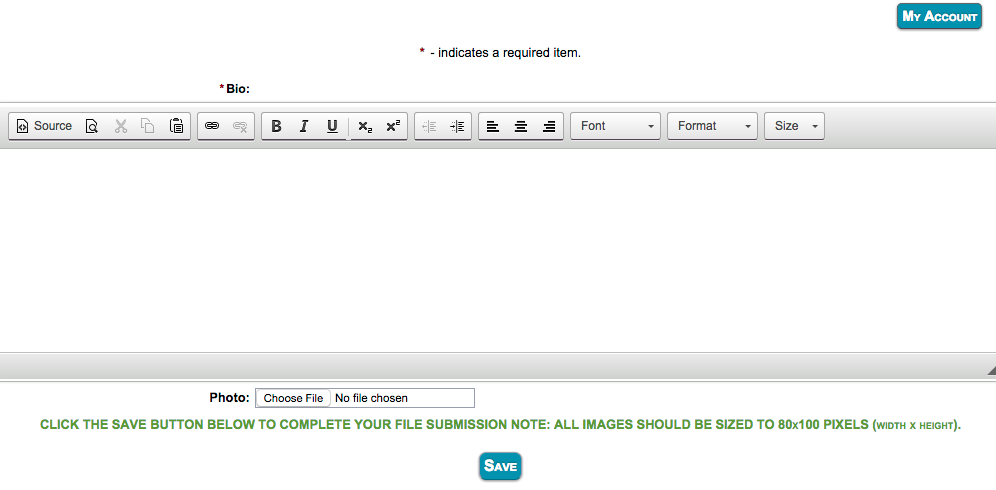
OPTION 1: Bio/Photo Report
1. Click the "Reports" option
2. Click the "People" option
3. Open the "Speaker Reports" section
4. Select button beneath "Bio/Photo/Photo Report"
5. Select your filter options to narrow down your results. (There is an optional filter for 'Bio' and 'Photo' if you want to pull only people who have added a bio and/or photo)
6. Select “Download Report”, and click on “Run Report”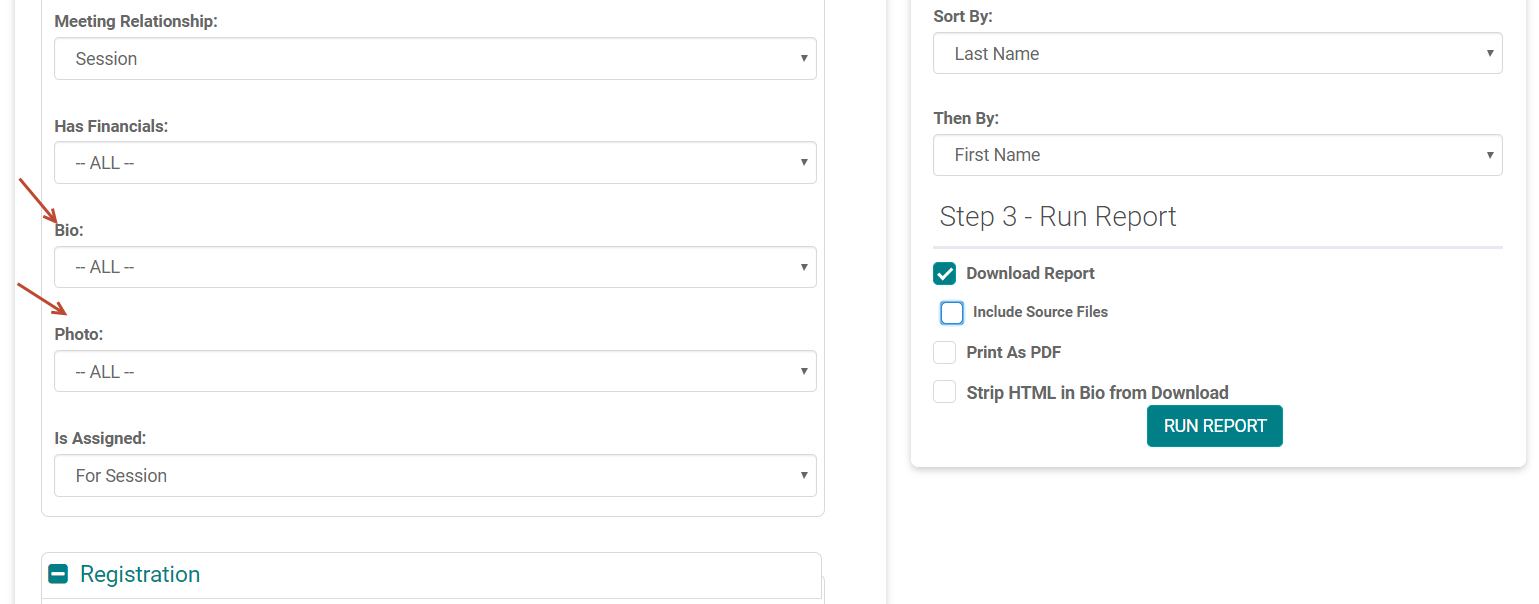
7. Click on the 'Download Report' or 'List/Download Photos'
Note: 'Download Report' button will include contact information with bios.
Note: 'List/Download Photos' button will include a download option for the Resized photos
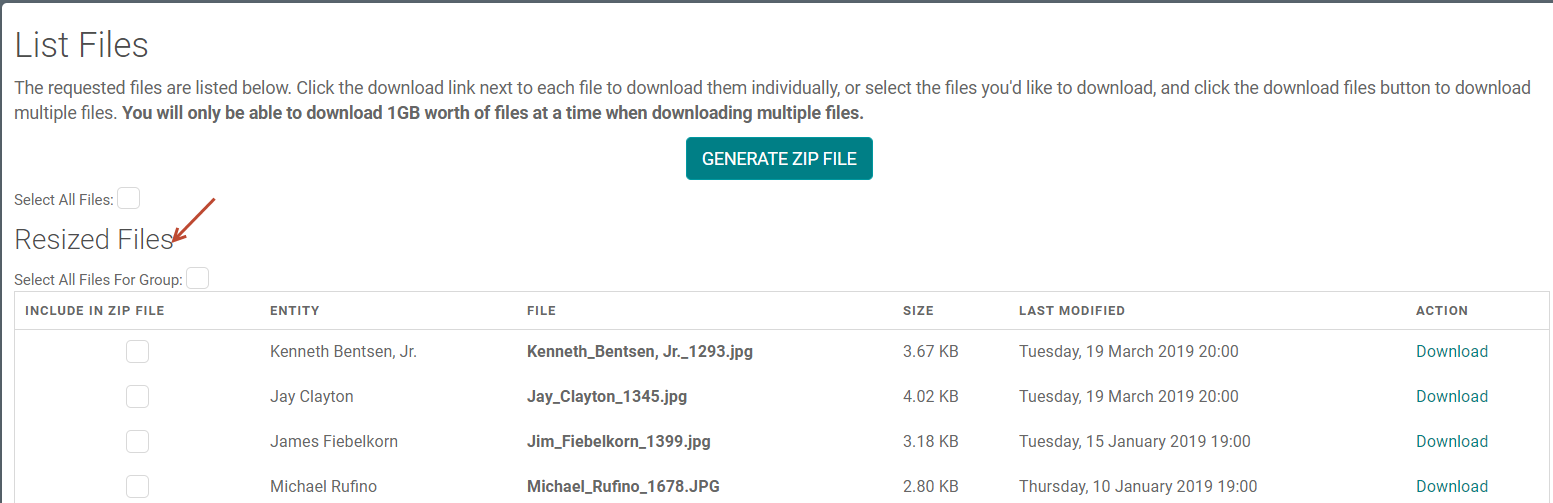
If you want the above list to include the original source photos, on step #6 select your filter options and select “Download Report”, and also “Include Source Files”, and then click on “Run Report”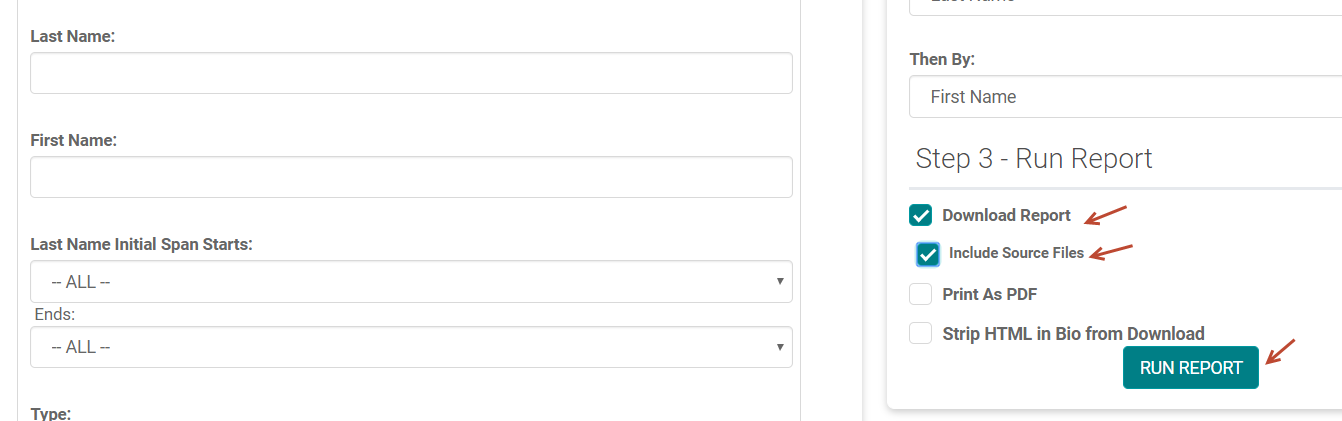
Then, the 'List/Download Photos' button will include a download option for the Resized Files and Source Files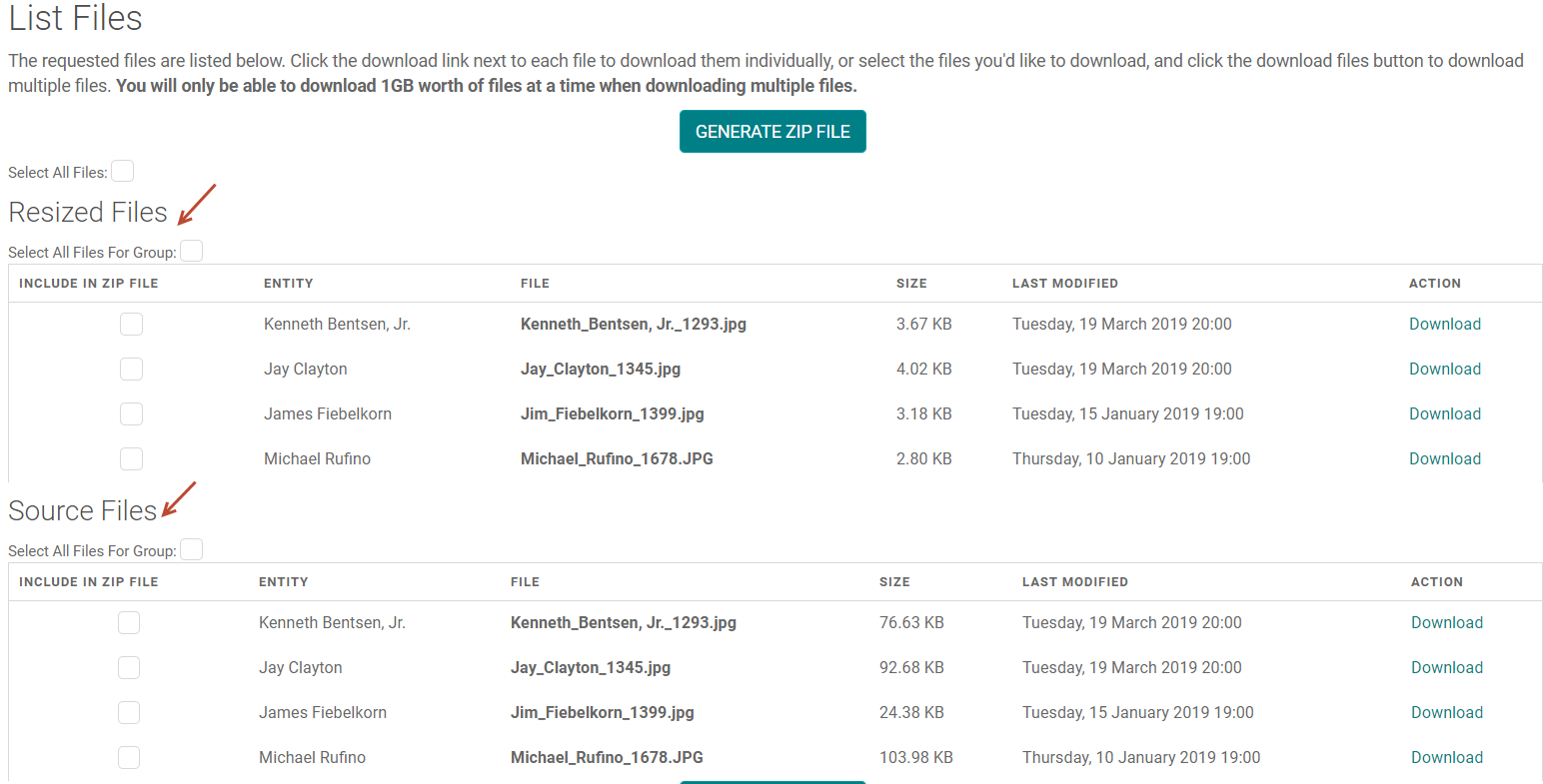
You can click on “Generate ZIP File” to download a .zip file of the selected photos.
Note: You shouldn't be able to zip more than 1GB worth of files.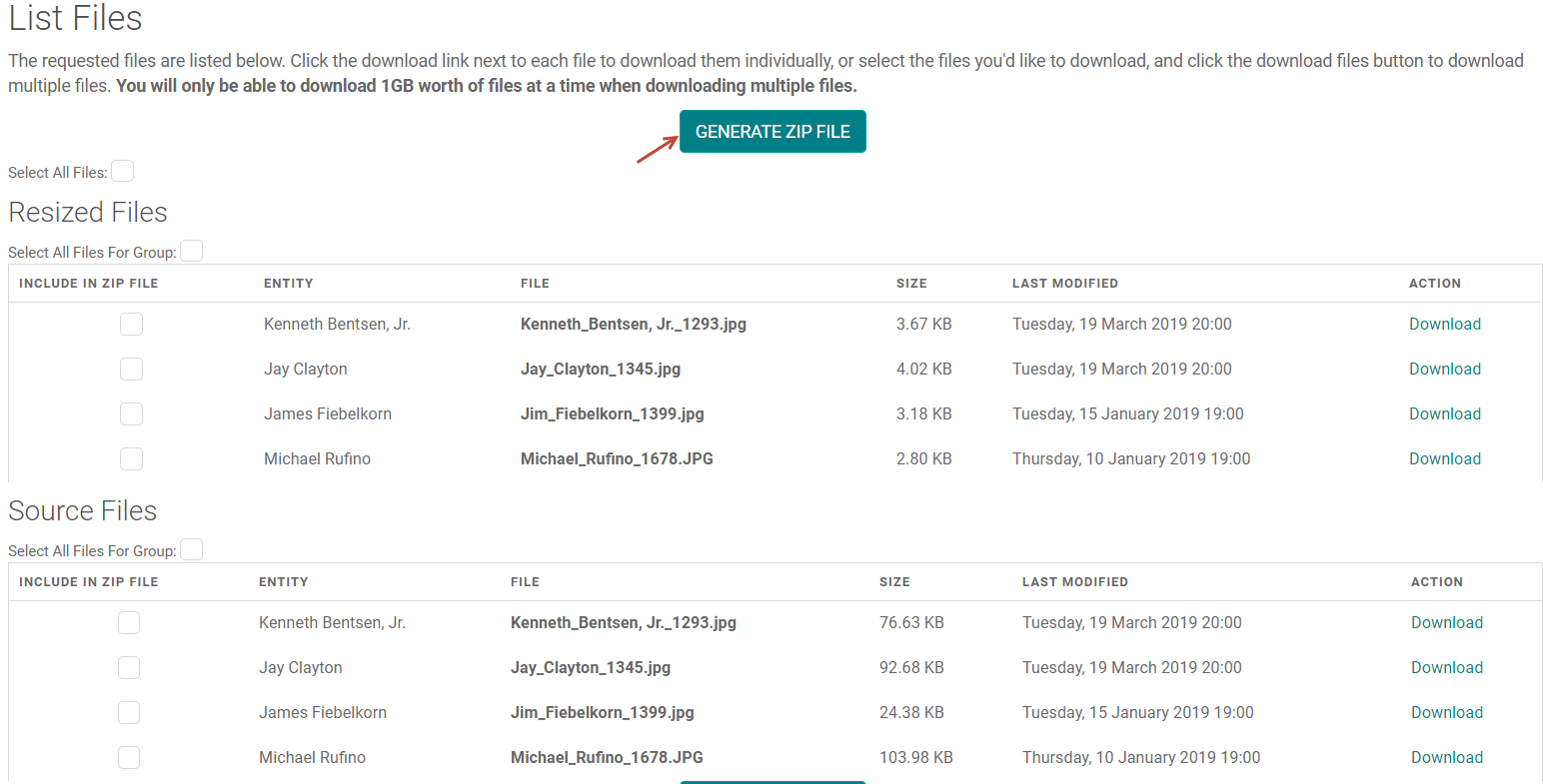
OPTION 2: Ad-Hoc Report
Note: Adhoc Report has only 'Download Report' button which will include contact information with bios.
Go to Reports > People > Ad-Hoc Report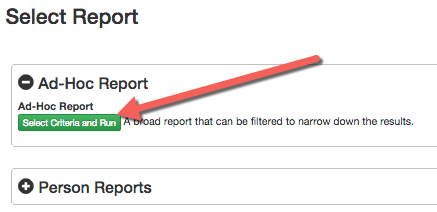
STEP 1 - Select Filter Options
Use the 'Filter Options' to narrow down your results
NOTE: There is an optional filter for 'Bio' and 'Photo' if you want to pull only people who have added a bio and/or photo.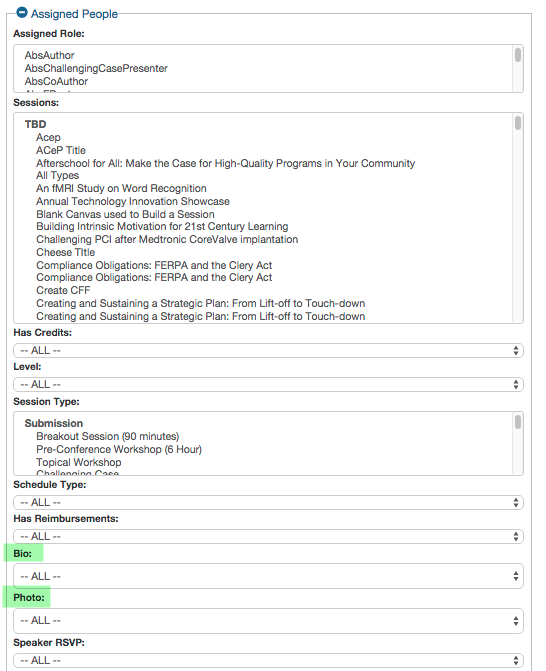
STEP 2 - Select Report Fields to be Included
Select the 'Photo' and 'Bio' fields
NOTE: the 'Photo' data will be the physical URL to the image file path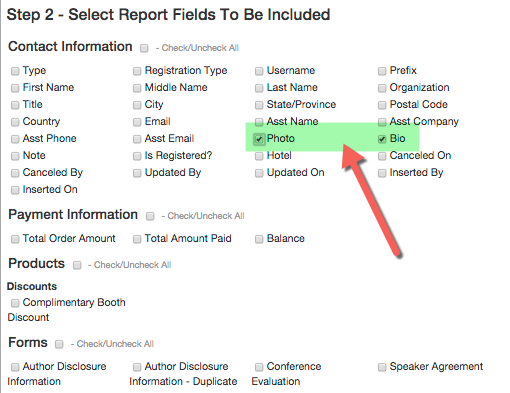
STEP 4 - Run the report
Related Articles
Speaker Form Reports
Form Response Ask Once Status Report - Select one or more forms - Select the roles meant to complete these forms - Select the Activity. This report gives a list of People assigned to the selected role on the Selected Activity. Completion status of ...People - Speaker - Ask Once Form Response Status Report
This report is to pull the status (complete or incomplete) of Forms flagged as Speaker Ask Once = Yes Go to Reports > People Under the 'Speaker Reports' header, click on the 'Select Criteria and Run' button below the 'Form Response Ask Once Status ...People- Speaker -Ask Many Form Response Status Report
This report is to pull the status (complete or incomplete) of Forms flagged as Speaker Ask Once = No. These forms are associated to each Event/Session a Speaker is assigned to. Go to Reports > People Under the 'Speaker Reports' header, click on the ...Document Reports
1. Session Documents Report: This report gives you downloadable links to the documents uploaded by Evroles from the Speaker Ready Room; or the documents uploaded under Sessions’ ‘Manage Document’ section by the Admin from the back end. Sessions > ...Form Reports
PRIMARY FORMS REPORTS: 1. Respondents: Select the form -Responses not Given/Responses Given and the Assigned role. Note: Do not include the Activity/Event filter in this search. This report runs against an Ask Once Form and queries all the people ...