Form Reports
PRIMARY FORMS REPORTS:
1. Respondents: Select the form -Responses not Given/Responses Given and the Assigned role.
Note: Do not include the Activity/Event filter in this search. This report runs against an Ask Once Form and queries all the people that could complete it being of the selected Speaker type.
Forms > Primary Form Reports > Respondents
2. Form Responses Report:
Run Report > Forms > Primary Form Reports > Responses
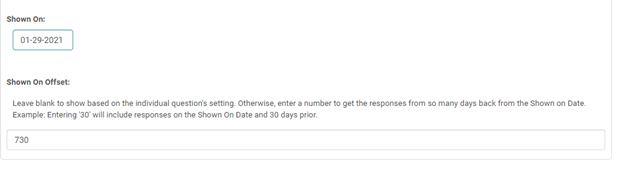
To run the above report for the Financial Disclosure responses for people on a specific Activity : Select the form, Select the Activity under 'Other' Filter and use the below 'Shown On Offset ' to see the relationship responses disclosed before a certain number of days from the date shown under the 'Shown On' field.
3. Responses Summary: This report gives a summary with response count and percentage for all the objective type questions such as True or false; check many; choose many; select one. Participants’ responses for free form questions are shown with the respondent name, city, state and country.
Run Report > Forms > Primary Form Reports > Responses – Summary
4. Responses – Summary with Comments:
Run Report > Forms > Primary Form Reports > Responses - Summary with Comments
5. Test results:
Primary Form Reports> Test results
ADVANCED FORM REPORTS:
1. Advanced Form Reports: Select the question- Restrict display results to the selected question. This would give responses as completed/confirmed for the selected question, on the selected form, on every activity by all individuals. Report result can be restricted to the selected questions.
Forms - Advanced Form Reports -select the form- select the questions and responses as needed
Related Articles
Speaker Form Reports
Form Response Ask Once Status Report - Select one or more forms - Select the roles meant to complete these forms - Select the Activity. This report gives a list of People assigned to the selected role on the Selected Activity. Completion status of ...Form Answers
Important fields information Value The name of the answer, and how it will look on reports. Display Text What text will appear next to the check box or radio button. Answer Weight This field is used for weighted forms and is very important to fill ...Form Answers
Important fields information Value The name of the answer, and how it will look on reports. Display Text What text will appear next to the check box or radio button. Answer Weight This field is used for weighted forms and is very important to fill ...Application Reports
1. Application Status Report: This report has several filters to know the Application status at several stages like completed and/or reviewed and/or approved. Applications > Primary Reports > Application Status Report 2. Application Detail Score w/ ...New Reports Menu
Run Report Reports > Run Report Run Report is used to generate reports on HghMarksCE. All the report options are displayed in tabs titled as per their report outcomes. Saved Reports:List of reports generated and saved for further use. Reports saved ...