New Reports Menu
Run Report
Reports > Run Report
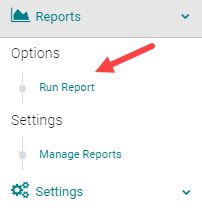
Run Report is used to generate reports on HghMarksCE. All the report options are displayed in tabs titled as per their report outcomes.

Saved Reports:List of reports generated and saved for further use. Reports saved can be run again and again by ‘Altering filter’ for different criteria such as activities, Sessions, roles, forms, dates etc.,
People: Any report generated under this tab is of the People and by the People involved with your HghMarksCE System. It could be people who have created user profiles; submitted applications; connected with activities/sessions through different roles such as Registrants, speakers or Coordinators and the like; document uploads by these people; Products purchasers; and those who have claimed credits.
Applications: All Application related reports including the approval status, applications categorizes on different criteria can be generated through this tab.
Sessions: Session wise reports by different criteria such as categories, attendance, credit offerings, associated speakers and their respective forms completion, can be generated under this tab.
Exhibitors:Reports on Exhibitor related information such as their contact info; booths and staff, products purchased documents uploaded, can be generated under this tab
Activities: Reports on the entire Activity details, roles associated with the Activity, pre and post Activity status, and PARS can be run under here. If the site has the JA-PARS and CPE Monitor reporting available they can be run the Activities Report tab. Forms: All reports such responses, responses summary and completion counts and status related to the application forms, evaluations, and post tests and outcomes surveys can be generated under here. The ’Advanced Reports’ section helps you generate reports on responses to each individual question and answer combinations.
System: This tab gives you log report on the emails sent and received via your HghMarksCE system.
Every tab has a key at the bottom of the screen that tells what each icon next to the report represent.



In order to make a report Private Run a report > Click 'Add My Report' > When saving, set Public Report = 'No, Private'
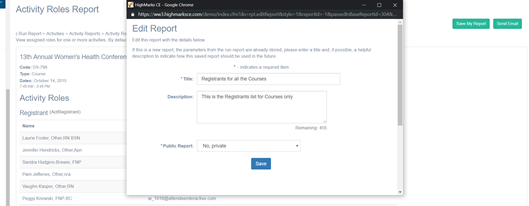
This report is only available to this account

Report that requires the Activity pre-selected before running it, has a clear notification that says ‘Activity selection required’
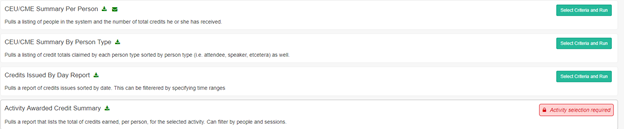
Advanced Form Reports has the form selection option right up front.

Related Articles
Add New Menu
Step 1: Go to Web Content > Site Map > Add New Menu Step 2: Complete Appropriate Fields and Click 'Save' Field Definitions: Parent – To be selected if you are creating a submenu. This will determine which main menu the submenu appears under. This can ...Add New Sub Item / Sub Menu
Step 1: Go to Web Content > Site Map > Add Sub Item Step 2: Complete the applicable fields and click 'Save' NOTE: The 'Parent' field is pre-populated with the Main Menu Title Navigation Menu Field Definitions: Parent – Select the parent menu item ...Edit Menu or Sub Item/Menu
Step 1: Go to Web Content > Site Map > Click on the Menu Title you want to edit Step 2: Make any necessary changes to the Navigation Menu and click 'Save' Navigation Menu Field Definitions: Parent – To be selected if you are creating a submenu. This ...Add New Content Page
Step 1: Go to Web Content > Site Map > click 'Edit Content' next to the Menu Title you want to add content to -OR- Step 1: From the 'Edit Navigation' page, click 'Edit Content' Step 2: Click 'Add New Content' Step 3: Add the appropriate content and ...Removing Strange Characters in Reports
Why am I seeing strange characters in my report? A "character encoding" is the system a computer uses to interpret and represent different characters. At Attendee Interactive, we receive Abstracts from all over the world. We selected "UTF-8" as our ...