Add New Content Page
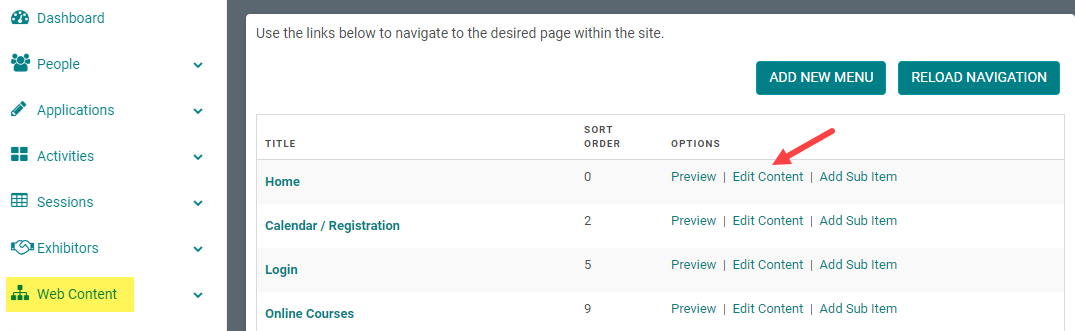
Step 1: Go to Web Content > Site Map > click 'Edit Content' next to the Menu Title you want to add content to
-OR-
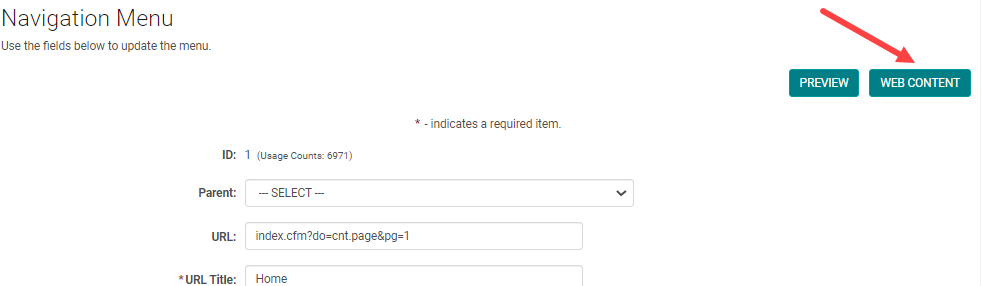
Step 1: From the 'Edit Navigation' page, click 'Edit Content'
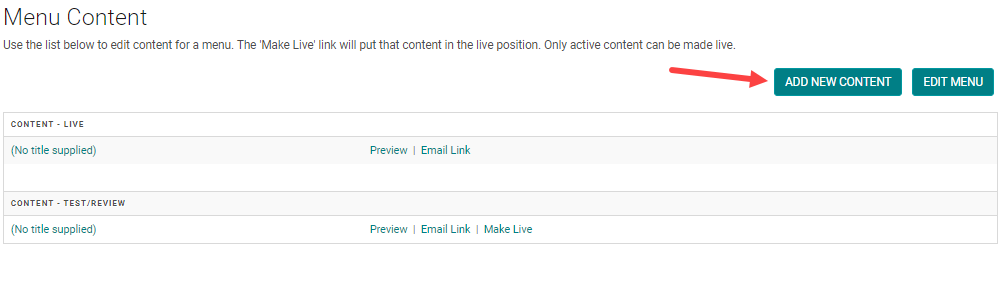
Step 2: Click 'Add New Content'
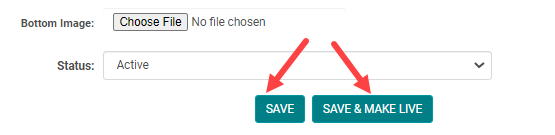
Step 3: Add the appropriate content and click 'Save' or 'Save & Make Live' if you want to publish the content on the website
Related Articles
Edit Content Page
Step 1: Go to Web Content > Site Map > click 'Edit Content' next to the Menu Title you want to add content to -OR- Step 1: From the 'Edit Navigation' page, click 'Edit Content' Step 2: Select the existing Content Title you want to edit, or click 'Add ...Add New Menu
Step 1: Go to Web Content > Site Map > Add New Menu Step 2: Complete Appropriate Fields and Click 'Save' Field Definitions: Parent – To be selected if you are creating a submenu. This will determine which main menu the submenu appears under. This can ...Test/Review Content and Live Content
Test/Review Content: Is content that is NOT published on the website. Allows you to create "pages in waiting" or duplicate a page and make edits without publishing your content immediately. Live Content: Is content that is published on your website ...Add New Sub Item / Sub Menu
Step 1: Go to Web Content > Site Map > Add Sub Item Step 2: Complete the applicable fields and click 'Save' NOTE: The 'Parent' field is pre-populated with the Main Menu Title Navigation Menu Field Definitions: Parent – Select the parent menu item ...Add New Application, Activity, Session or Presentation Role
The below document includes the role set up rules for Application and Activity/Session level roles. Go to Applications> Person roles or Events/Sessions > click on 'Person Roles' Click on the 'Add New Role' button Enter the required fields and click ...