Inactivating a Session/Event
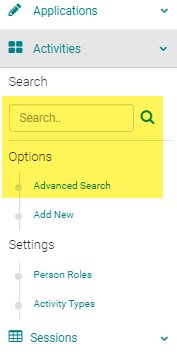
Go to Sessions (or Events) and use the search box or 'Advanced Search' to find the Session you need to inactivate
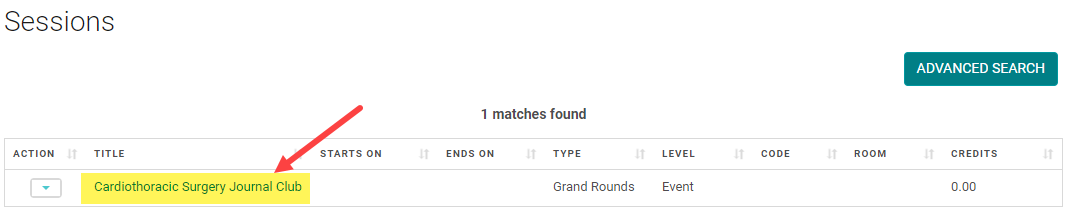
Click on the Session Title
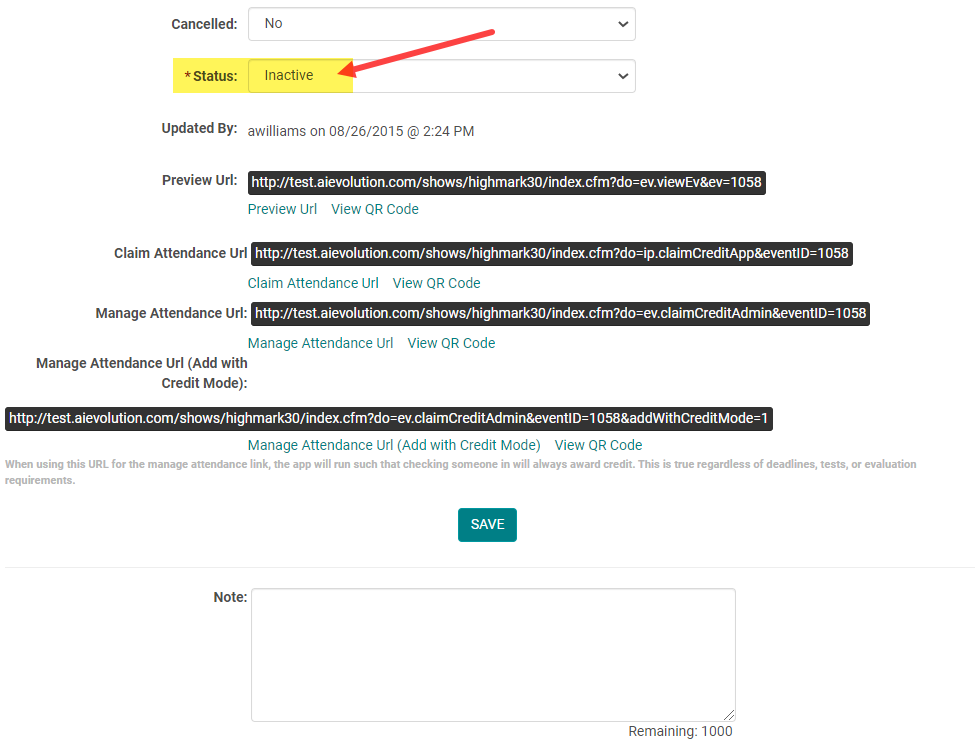
Scroll to the bottom of the page, change the 'Status' field to 'Inactive', and click 'Save'
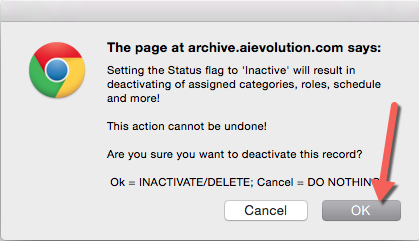
Click 'OK' to fully inactivate the Session. NOTE: Inactivating a Session will result in removing assigned Categories, Speakers (or other Roles), Presentations, and more!
Related Articles
Event/Session Type
To add or edit an Event/Session Type, go to Sessions (or Events) and click on 'Session Types' (or Event Types) To edit an existing Type, click on the name of the Type. Or, click on the 'Add New Type' Complete the required fields and click 'Save' ...Add New Session/Event
Note: Prior to adding a Session you need to add the Activity. Select the Activity you want to add a new Session/Event to using the Activity Switcher Go to Sessions (or Events) and click 'Add New' Field Definitions: Type = Select the type of the ...Event / Session Document Upload Reports
There are two reports you can run to find out the status of Event / Session Document Uploads (i.e., Handouts, Presentations, Materials, etc.): Go to Reports > People Click on the 'Documents Reports' section and select one of the two highlighted ...Activity Types vs. Event/Session Types
Activity Type = Valid ACCME PARS activity formats (Course, Regularly Scheduled Series, Internet Live Course, Enduring Material, Internet Activity Enduring Material, Journal-based CME, Manuscript Review, Test Item Writing, Committee Learning, ...View Detailed Listing of Event/Session Roles and Rules
To see all Event/Session Types and associated Roles, go to Events/Sessions > click on 'Event/Session Types' Click on the 'View Detailed Listing' button The listing will be separated by Event/Session Type. Click on a Role 'Code' or 'Name' to edit ...