How to send Session Link for private Enduring Materials
If you want Enduring Materials sessions to to be accessed by a specific group of people, you could send them the Enduring Material Session URL via Email. The URL directs the users to the Enduring Materials' session where they get to view the material and take pre/post tests and do their evaluations.
Note: The user must still be logged into the system in order to use the link.
If your website lists the Enduring Sessions, follow the instructions below:
1) On the Edit Session page, flag the Public field = No, Private, making the session invisible to the front end users.

2) Import or add people to the Session 'Roster Management'
3) Scroll to the bottom of the page and 'Save' it. Copy either the QR Code or the Online Course URL and email the URL link to the individuals you want to allow access to the Enduring Material course.
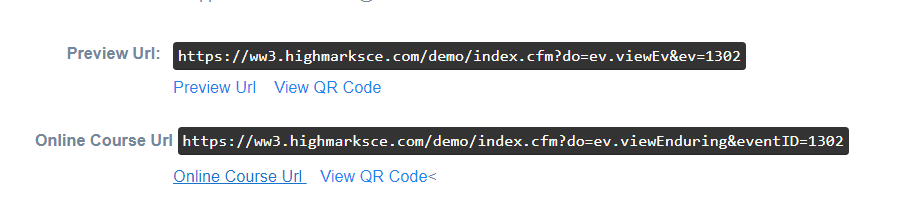
You could go to the individual profile and send the email or you could send an email to everyone registered once you have completed an import.
To send a mass email to the Roster Imports:
1. Create the email in Settings - Emails
2. Go to Reports>People> Person Reports> Session Roster
3. Use the Send Email button and select the email you created.
4. Check that everyone imported is listed and checked and hit Send.
If your website lists the Enduring Activities, follow the instructions below:
1) on the Activity Information page, flag the Public = No, Private, making the Activity invisible to the front end users.
2) You can either
- import people to the Roster, and flag the Public = No, Private, on the Session page. Email the Enduring Materials link to the individual users or send a mass email from the Session Roster Report.(Explained above)
OR
- skip the import, and leave the Public = Yes on the Session page. Email the Enduring Materials link to the individual users.
Note: regardless of the process, the user must still be logged into the system in order to use the link.
Related Articles
Enduring Materials Setup Instructions
Step 1: Go to Activities > Add New (Note: If the Activity has been mapped from the Application, search for the Activity in the 'Search' field. ) Step 2: Enter required information and click 'Save' Type= Enduring materials Public = Yes. If you want ...Enduring Materials Post-Test Front end View
The user will be able to access the Enduring Materials either through 'Online Courses' link or 'Enduring Materials' link. This depends on the site setup. Step 1: The user will click on the 'Register' (if Registration on is flagged 'Yes') or 'Enroll' ...Enduring Materials Post-Test Front end View
The user will be able to access the Enduring Materials either through 'Online Courses' link or 'Enduring Materials' link. This depends on the site setup. Step 1: The user will click on the 'Register' (if Registration on is flagged 'Yes') or 'Enroll' ...How to add Zoom/webinar Meeting and recorded presentation links to Enduring Materials
Zoom/webinar Meeting and recorded presentation links on Enduring Materials There are two different places where you could add the Zoom links on Enduring Materials. Option 1: If you would like the Zoom Link to show as a part of the Enduring Material ...How Enduring Materials Sessions are Shown and Hidden from Public listing
1) The basic rules for Enduring Material to show in the Public listing are: All Sessions flagged as 'public' regardless of the Activity/Session dates regardless of the Activity being 'Private' or 'public' 2) CME Deadlines The above set up+ No CME ...