Enduring Materials Post-Test Front end View
The user will be able to access the Enduring Materials either through 'Online Courses' link or 'Enduring Materials' link. This depends on the site setup.


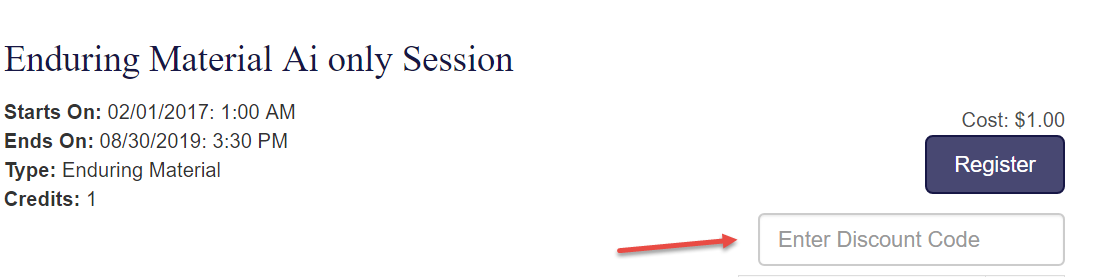
Step 1: The user will click on the 'Register' (if Registration on is flagged 'Yes') or 'Enroll' (if the Registration on =No) to enroll into the course and have access to the Content. Reg products are allowed on Enduring Materials. Even when there is no discount product added to the Activity, the enduring materials allows global discounts to be used. This can be ignored unless there is discount option.
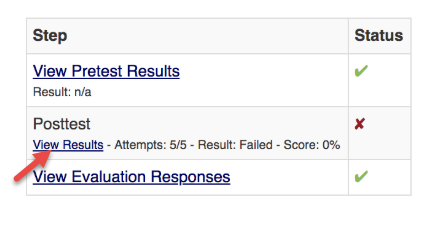
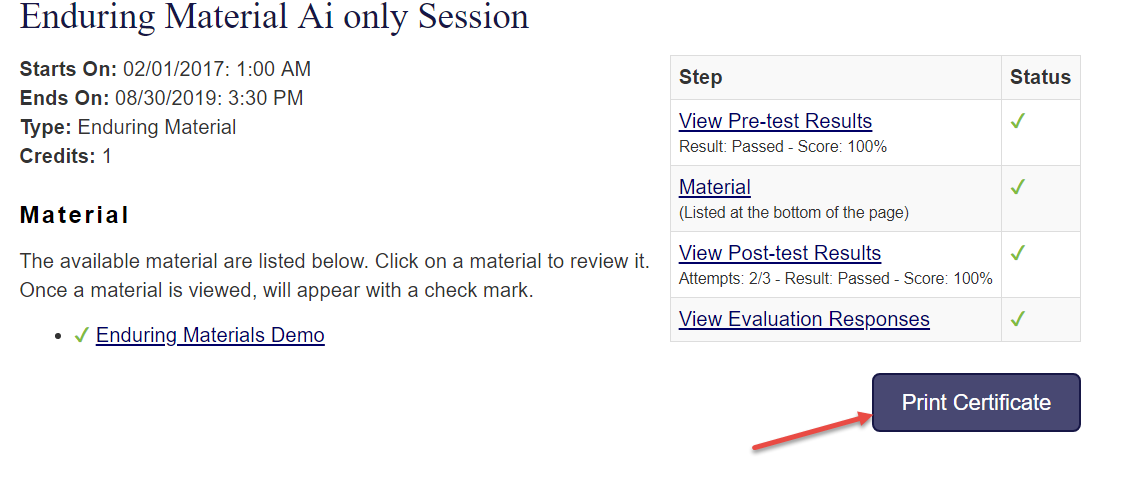
Step 2: The user takes the Pretest; reviews the Enduring Material; takes the Post Test; and completes the Evaluation.
Displaying Correct Answers
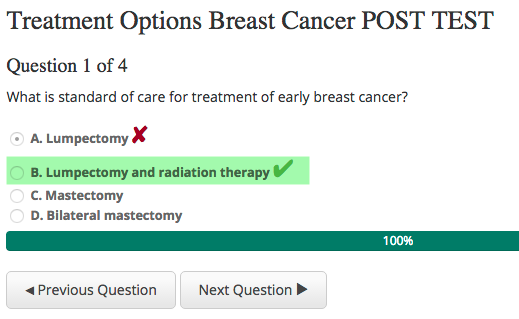
The correct answers will display to users via the 'View Results' link if one of the following occurs:
- The user passes the test - they will see the correct answers via the 'View Results' link
- The user fails all test attempts - they will see the correct answers via the 'View Results link
The 'Test submission attempts' and 'View Results' are controlled by the values entered in the fields as shown below for the pretest and Post test forms.
If the 'View Answer Attempts' is less than the 'Submission Attempts' , a person who has pending test attempts does not see the Correct answers until they reach the max submission attempts. This is not the case when answer explanation is available. Though the correct answer is not shown, answers explanations are shown as per the value set on this field. For this reason if you are adding answer explanations, always have the same value set for both the fields.

Users who failed all test attempts can click on the 'View Results' link to see the correct answers being displayed
Displaying Answer Explanations
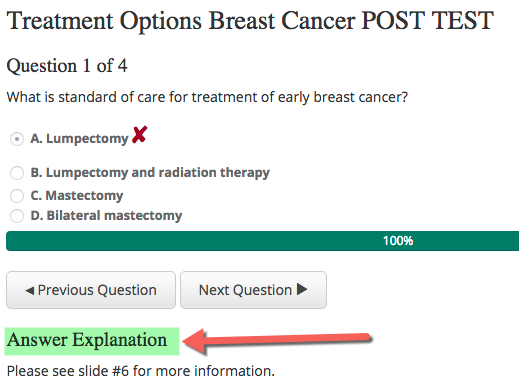
There is an option within each Post-Test Question to add an 'Answer Explanation' (or hint) to help users who fail their Post-Test. To set up Answer Explanations, please follow the instructions in the related article.
Answer Explanations will show up via the 'View Results' link if one of the following occurs:
- The user passes the test - they will see the correct answers via the 'View Results' link
- The user fails the number of times the 'View Answer Attempts' field is set to in the Form Settings.
Step 3: After completing the evaluation credits would be added to the users and they would be able to print their certificate.
 Note: if the user has used up all of his/her test attempts and failed, the Evaluation step (if present) will still be available for completion. However, completion of the evaluation at that point does not award credit if the post-test is weighted (i.e., they failed).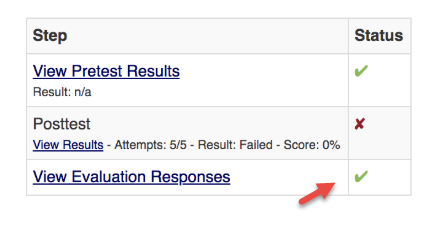
Related Articles
Enduring Materials Post-Test Front end View
The user will be able to access the Enduring Materials either through 'Online Courses' link or 'Enduring Materials' link. This depends on the site setup. Step 1: The user will click on the 'Register' (if Registration on is flagged 'Yes') or 'Enroll' ...Enduring Materials Setup Instructions
Step 1: Go to Activities > Add New (Note: If the Activity has been mapped from the Application, search for the Activity in the 'Search' field. ) Step 2: Enter required information and click 'Save' Type= Enduring materials Public = Yes. If you want ...How to send Session Link for private Enduring Materials
If you want Enduring Materials sessions to to be accessed by a specific group of people, you could send them the Enduring Material Session URL via Email. The URL directs the users to the Enduring Materials' session where they get to view the material ...Pre and Post Test Form Results Report
To pull the test results for users who submitted a Form Type = Pre or Post-Test, go to Reports > Forms Under the 'Primary Form Reports' header, select the 'Test Results' report Select the appropriate Form(s) and click 'Run Report' NOTE: Use the ...Reset Person's Test Attempts for Activity Pre and Post-Test
If a user fails all test attempts, you have the option to reset their attempts. Go to People > use the text search option or 'Advanced Search' to find the user you wish to reset the test attempts for From the 'Action' column, click on 'My Credits' ...