How to add Zoom/webinar Meeting and recorded presentation links to Enduring Materials
Zoom/webinar Meeting and recorded presentation links on Enduring Materials
There are two different places where you could add the Zoom links on Enduring Materials.
Option 1: If you would like the Zoom Link to show as a part of the Enduring Material step by step process
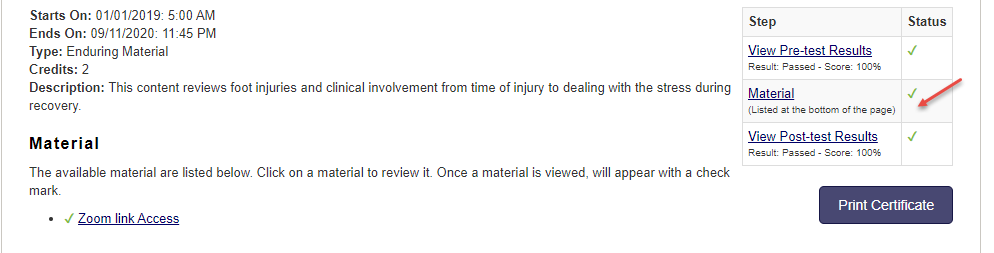
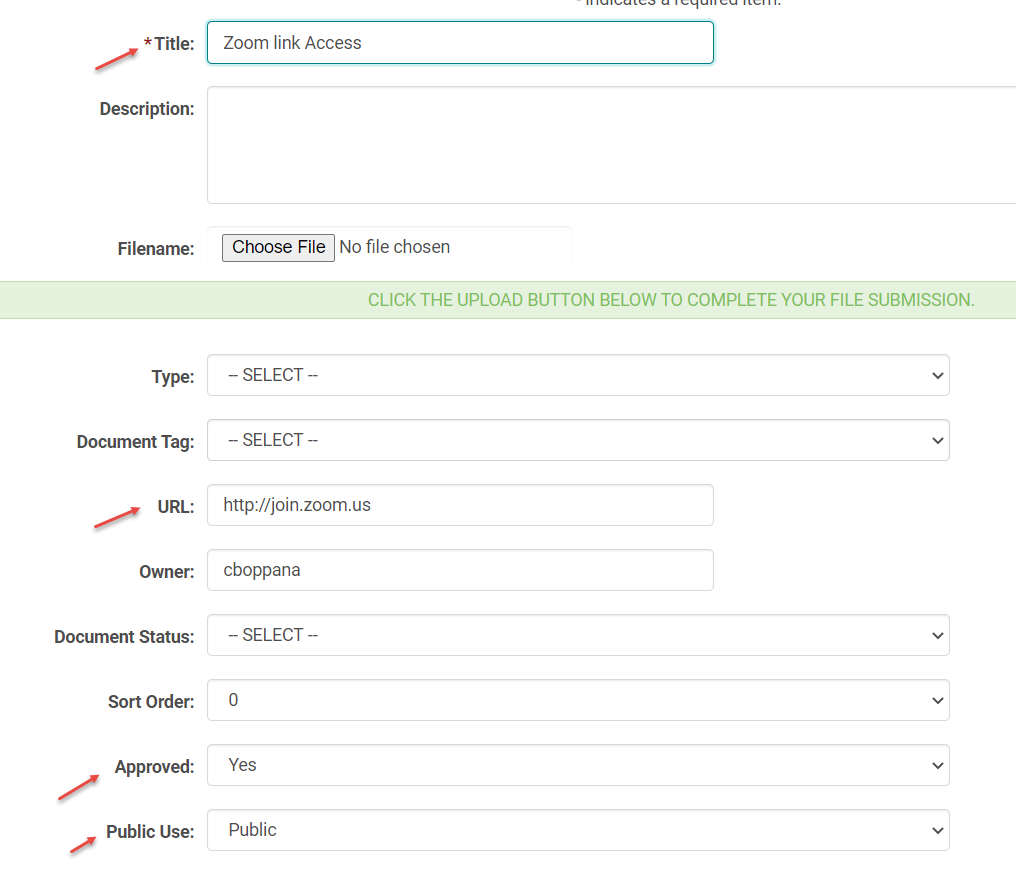
Go the Enduring Material Session > click on the Manage Documents button, and add the zoom link to the URL field. Flag the Approved and Public Use fields as shown below.
Option 2: If you would like the Zoom Link to show on the preview, but not as a part of the step by step process
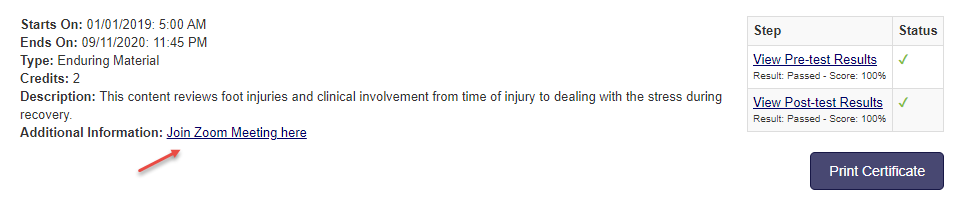
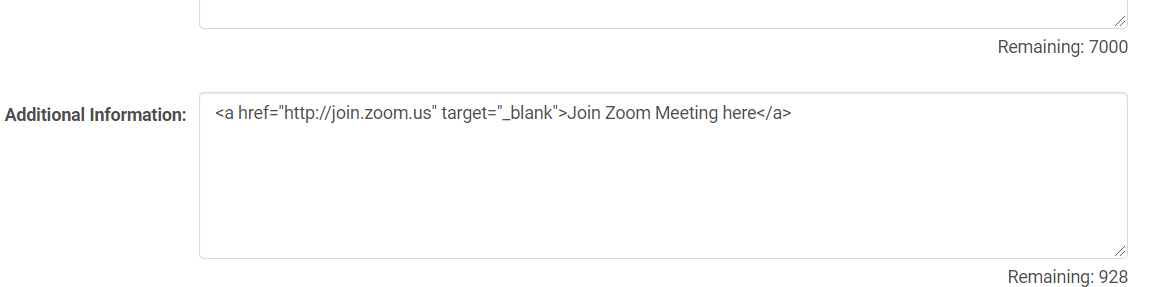
On the Edit Session page add the zoom link either in the Description or Additional Information (if available) field. Make sure the anchor tags and the syntax rules are correctly followed.
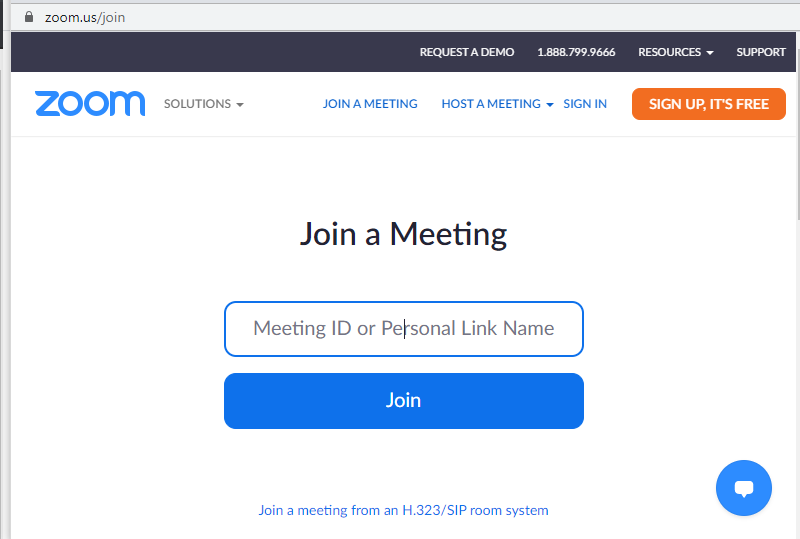
If your link does not include a meeting id, when the user clicks on the link it would open a page like this for them to enter the meeting ID.
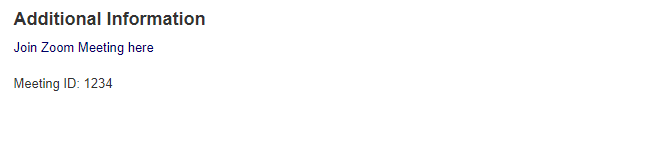
you could add the Meeting ID info under the Additional Info section on the Edit Session screen.
You can also add the recorded Zoom presentations in the place of the zoom meeting links.
Note: HM does not host large media files, so we recommend you to host the recorded zoom video or audio files on other platforms and add the access links on the HM web site.
Related Articles
Enduring Materials Setup Instructions
Step 1: Go to Activities > Add New (Note: If the Activity has been mapped from the Application, search for the Activity in the 'Search' field. ) Step 2: Enter required information and click 'Save' Type= Enduring materials Public = Yes. If you want ...How to Restrict the Webinar/Meeting/Presentation links or Documents uploaded to Sessions for Registrants only
There is a "Public Use" field on the Session documents set up called "Semi-Public – Restricted to Registered Users." Selecting this option will: From the front end Makes the document only visible to registered users (users in the ActRegistrant role) ...Enduring Materials Post-Test Front end View
The user will be able to access the Enduring Materials either through 'Online Courses' link or 'Enduring Materials' link. This depends on the site setup. Step 1: The user will click on the 'Register' (if Registration on is flagged 'Yes') or 'Enroll' ...Enduring Materials Post-Test Front end View
The user will be able to access the Enduring Materials either through 'Online Courses' link or 'Enduring Materials' link. This depends on the site setup. Step 1: The user will click on the 'Register' (if Registration on is flagged 'Yes') or 'Enroll' ...How to send Session Link for private Enduring Materials
If you want Enduring Materials sessions to to be accessed by a specific group of people, you could send them the Enduring Material Session URL via Email. The URL directs the users to the Enduring Materials' session where they get to view the material ...