How to Restrict the Webinar/Meeting/Presentation links or Documents uploaded to Sessions for Registrants only
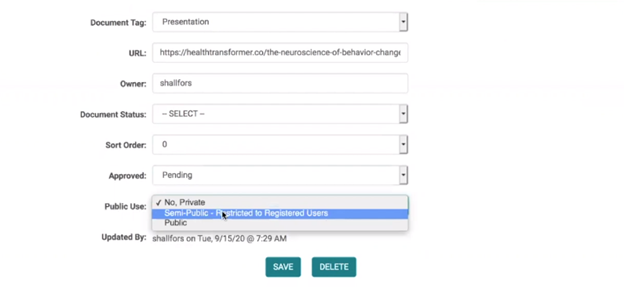
Selecting this option will:
From the front end
- Makes the document only visible to registered users (users in the ActRegistrant role) in previews and public searches
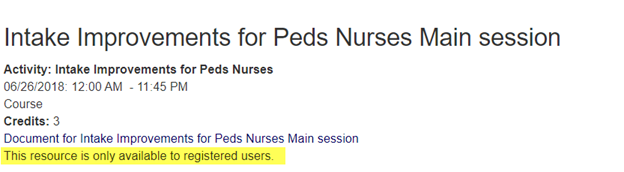
Note: This field works for Activities whether or not the Registration is turned on.
- When there is Registration all the Registrants are automatically added to the ActRegistrant role.
- For Activities where there is no registration you can still add certain selected users to the ActRegistrant role and allow them access to the restricted documents with the help of this field set up.
- Users who are not in the ActRegistrant role regardless of registration turned on or not for the Activity, will not see this document at all.
- This flag is irrelevant to Enduring Materials Session documents. That means, on Enduring Materials documents can only be access by users that enroll/register for that Enduring Materials Activity. So, just use the 'Public' flag.
From the Admin side
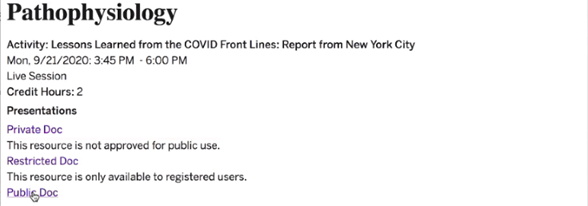
Previews from the Admin side will show all the documents regardless of the “Public Use” field status. Like shown in the below screenshot there is a note under each document to notify the Admin which document is available for the front-end users.
Documents flagged as
No, Private– not visible from the front end whether registered or not. The note under the document says “This resource is not approved for public use”
Semi-Public – Restricted to Registered Users - Visible only to the registered users. The note the document says “This resource is only available to registered users”
Public – Visible from the front end whether registered or not. There is no note under public docs.
Additional areas this change is reflected
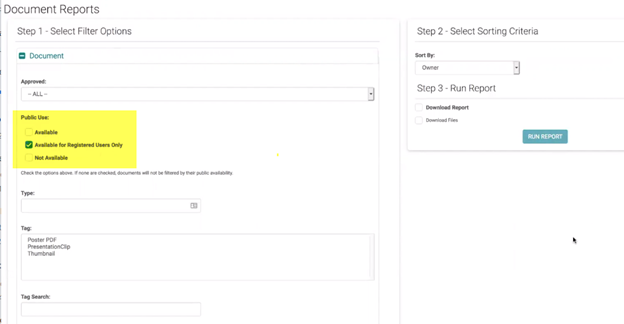
- Reports > Events > Document Reports >when you run a report, there is now an additional option (if registration is turned on) where you can search by multiple Public Use settings
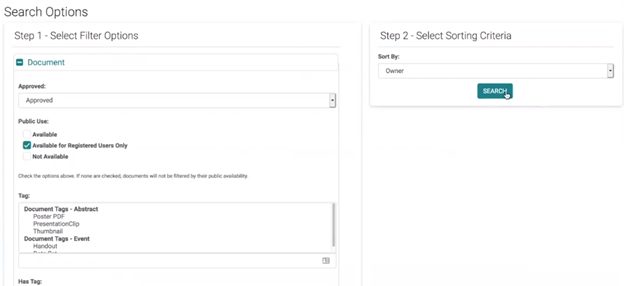
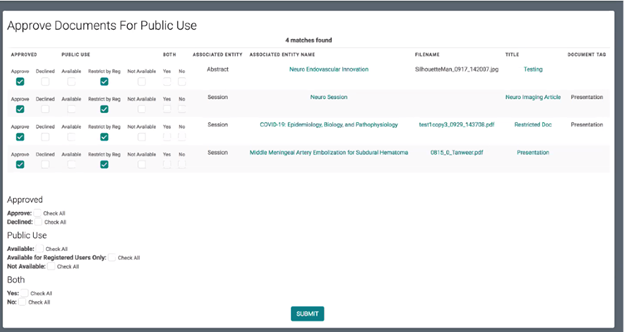
- Bulk approve docs for public use under Settings > Documents you should be able to filter the results by this flag and update the settings as needed.
Additional Note:
Related Articles
How to add Zoom/webinar Meeting and recorded presentation links to Enduring Materials
Zoom/webinar Meeting and recorded presentation links on Enduring Materials There are two different places where you could add the Zoom links on Enduring Materials. Option 1: If you would like the Zoom Link to show as a part of the Enduring Material ...Meeting times - Old version
To set Meeting times use the Activity 'Switch' or go to Activities > use the text search option or 'Advanced Search' Click on the Name of the Activity Click on 'Meeting Times' Click on the 'Add New Meeting Time' button Select the Speaker Ready Room ...Add New Application, Activity, Session or Presentation Role
The below document includes the role set up rules for Application and Activity/Session level roles. Go to Applications> Person roles or Events/Sessions > click on 'Person Roles' Click on the 'Add New Role' button Enter the required fields and click ...Meeting Times/Deadlines - Definitions
Deadlines controls the time period for the front end roles' ability to do certain actions and access certain sections. Activity Document Deadline: When the Coordinator has the Activity Edit rights to "Docs' section, this sets time range to upload ...Add or Assign/ Remove Speaker - Session/Event or Presentation
Go to Sessions/Events > use the search box or 'Advanced Search' to find the Session or Presentation you want to assign a speaker to Click on the Title of the Session/Event or Presentation Click 'Manage People' (sometimes labeled as 'Manage Speakers' ...