Attendance Management - Add/Remove people from Session Attendance
Attendance Management is used to record users who attended a particular Event/Session. If using the CE/CME Module, participants can also be recorded in an Event/Session with the appropriate Credit/Hours.
Users will automatically populate in this screen if you are using any of the following features:
- Self Claimed Credit
- Enduring Materials
- QR Code Mobile Check-in
- Manage Attendance Coordinator Check-in screen
Check with your Project Manager if you are unsure of which feature you are using.
To manually add a user to 'Attendance Management'
Go to Events/Sessions > use the text search option or 'Advanced Search' to find the Event/Session you want to add a user to
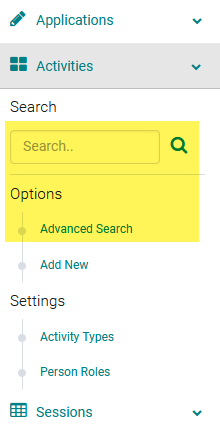
Click on the Title of the Session

Click on the 'Attendance Management' button

Click 'Add People'

Use the Filter Options to find the user you want to add and click 'Search'

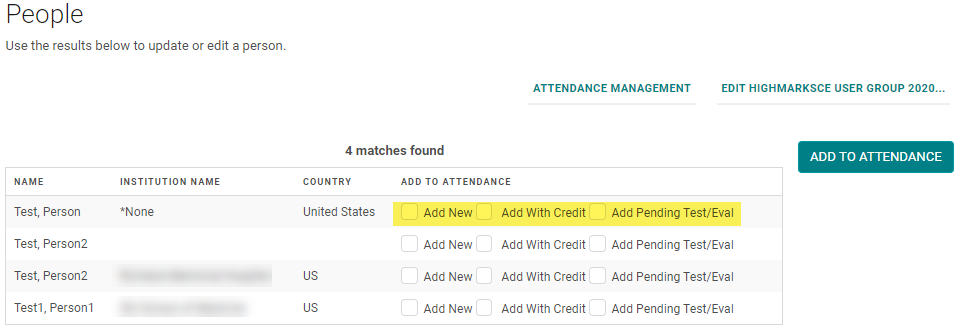
Select the appropriate option under the 'Add to Attendance' column header and click the 'Add to Attendance' button:
-
Add New - will simply record the user as "attended"
-
Add With Credit - will add the user with the appropriate Credit/Hours indicated in the Event/Session. The user will be able to see the credit from their 'My Credits' page.
- Add Pending Test/Eval - will add the user in a 'Pending' credit status until they complete the required Post-Test or Evaluation. The user will see the 'Pending Credits' section in their 'My Credits' page. NOTE: this feature must be set up by a Developer. .
Confirm the user was added on the 'Attendance Management' screen
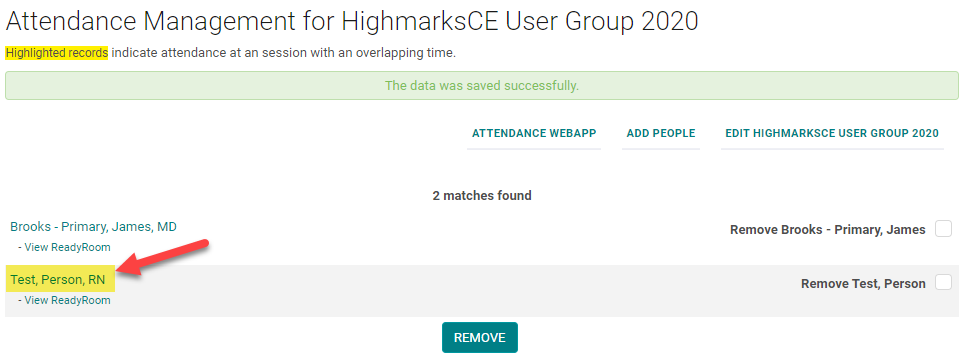
Check the box next to - Remove person name, the person is removed from the Session Attendance.
Related Articles
Attendance Management - Add/Remove people from Session Attendance
Attendance Management is used to record users who attended a particular Event/Session. If using the CE/CME Module, participants can also be recorded in an Event/Session with the appropriate Credit/Hours. Users will automatically populate in this ...Roster Management - Add/Remove people from Session Roster
Checklist: 1) Select the Session and click on the Session name 2) Go to Roster Management 3) Click on Add People 4)Search for the person to be added to the Roster 5) Check the 'Add New' option Roster Management is used to record users who registered ...Add New Session/Event
Note: Prior to adding a Session you need to add the Activity. Select the Activity you want to add a new Session/Event to using the Activity Switcher Go to Sessions (or Events) and click 'Add New' Field Definitions: Type = Select the type of the ...Running Session Attendance Credits Report in Excel
Select the Activity in the Switcher Go to Reports and select Sessions Under CE/CME Reports, select Credits by Session OPTIONAL: Type a portion of the title into the “Title:” field under Primary OPTIONAL: Expand the “Dates/Location” section and for ...Add or Assign/ Remove Speaker - Session/Event or Presentation
Go to Sessions/Events > use the search box or 'Advanced Search' to find the Session or Presentation you want to assign a speaker to Click on the Title of the Session/Event or Presentation Click 'Manage People' (sometimes labeled as 'Manage Speakers' ...