How to Add questions with an image
To add images to the form questions
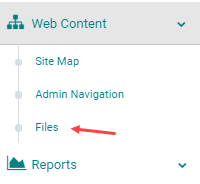
Go to Web Content > Files
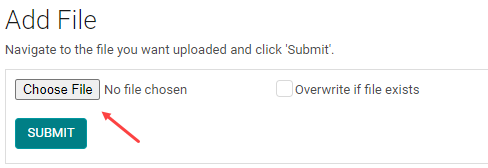
Click on Choose File and select the file on your system.
Click Submit
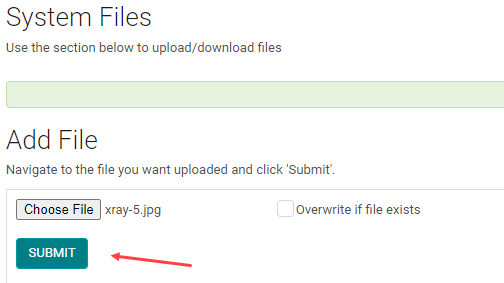
Once the file is added copy the file link

Now, go to the form and click Add Question

Enter the Question name and Question type like you would normally do.
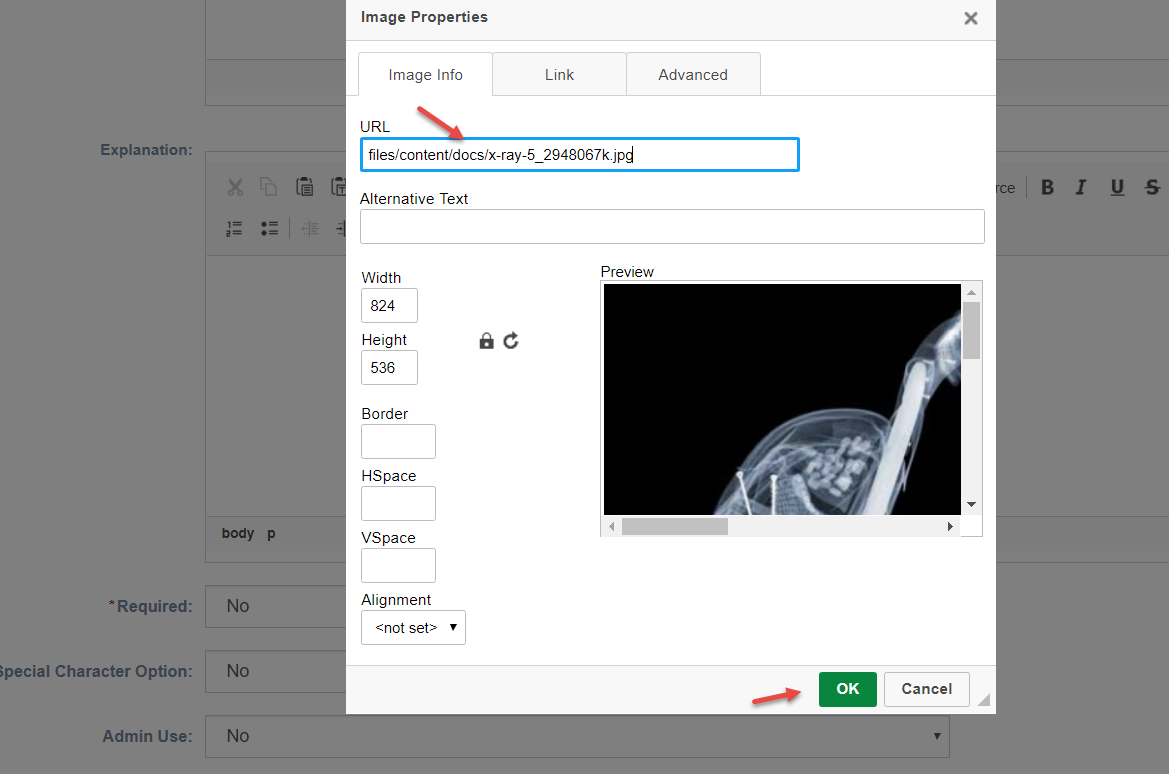
If the Post test is for an Enduring Material or Self Assessment Session, click on the image upload icon under the Narrative.
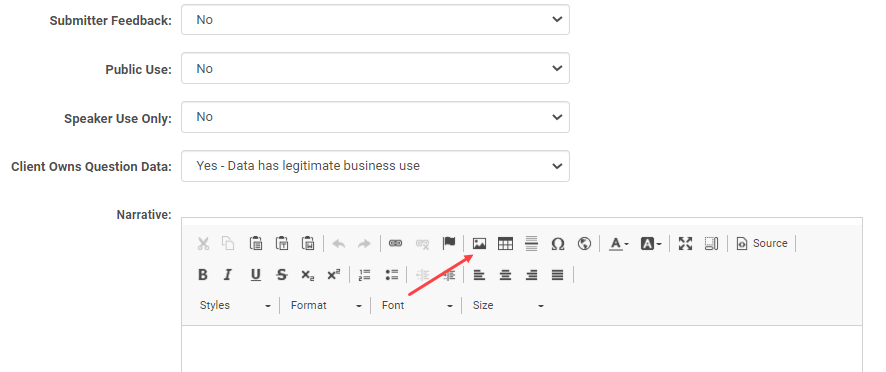
Paste the URL copied from the files section under the URL field as shown below.
Click Ok and Save the question.
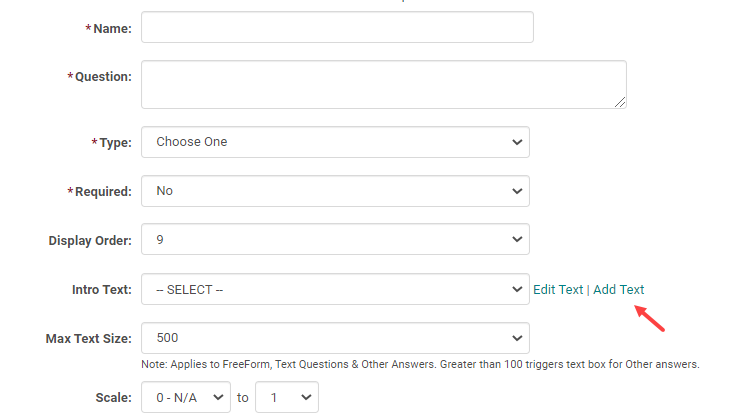
If the Post test is for a Live Activity/RSS, click on the Add Text at the end of the Intro Text field
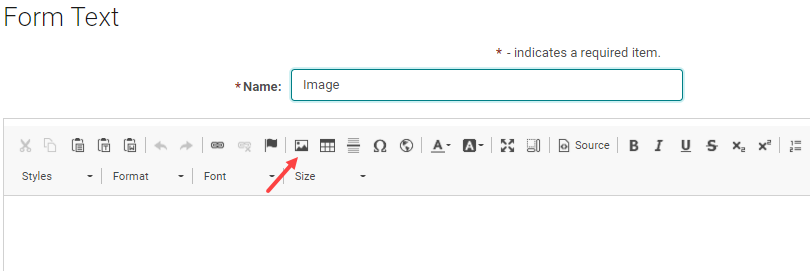
Enter a name to the Text and click on image upload icon
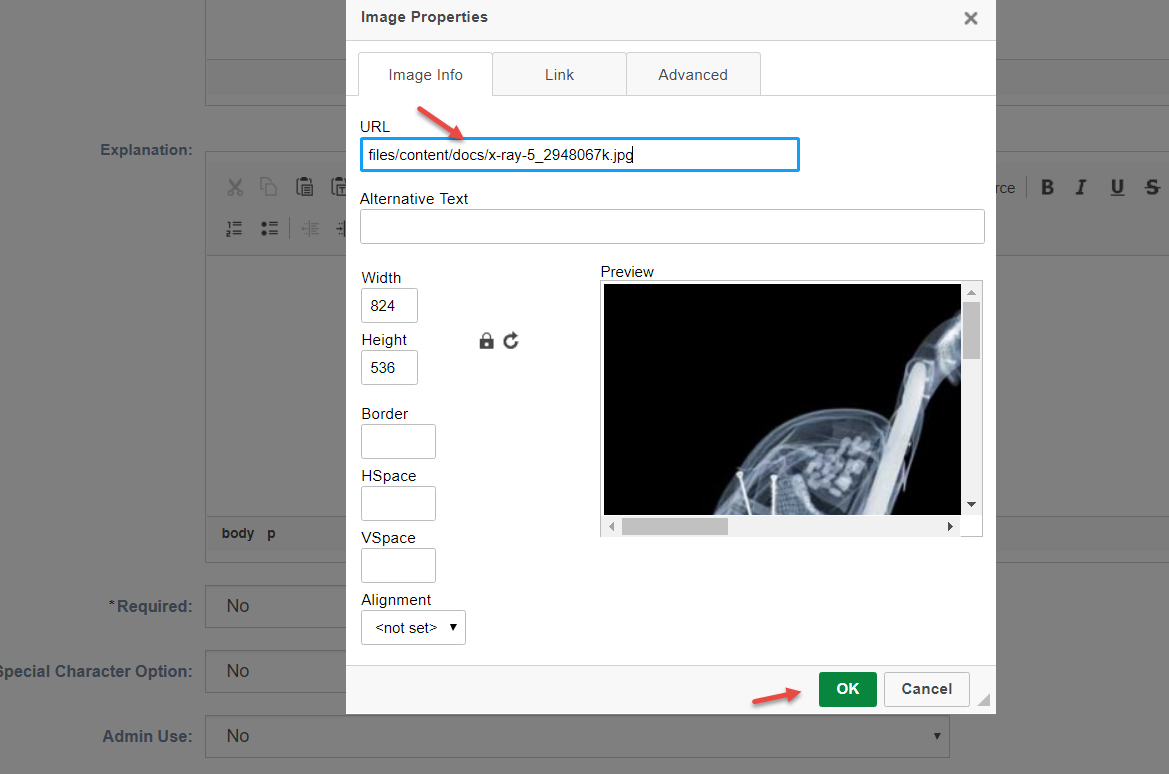
Paste the URL copied from the files section under the URL field as shown below.
Click Ok and Save the question.
Related Articles
How to Add questions with an image
To add images to the form questions Go to Web Content > Files Click on Choose File and select the file on your system. Click Submit Once the file is added copy the file link Now, go to the form and click Add Question Enter the Question name and ...How to Add questions with an image
To add images to the form questions Go to Web Content > Files Click on Choose File and select the file on your system. Click Submit Once the file is added copy the file link Now, go to the form and click Add Question or go to the edit page for the ...Add Image to Web Content
STEP 1: Go to Web Content > Files STEP 2: At the bottom of the page, select the 'Choose File' button STEP 3: Search your computer for the correct file and click 'Open' STEP 4: Click the 'Submit' button NOTE: check the 'Overwrite if file exists' to ...Add and Edit Scrolling Banner Images
When there is scrolling banner added to your site you have the ability to change the images and update it as needed. The slider is setup to come from the web content. How it works: There is a parent menu item called Slider or Slider Images or ...Add a Document link to the Web Content
STEP 1: Go to Settings > Web Content > Files STEP 2: At the bottom of the page, select the 'Choose File' button STEP 3: Search your computer for the correct file and select 'Open' STEP 4: Select the 'Submit' button NOTE: check the 'Overwrite if file ...