Add and Edit Scrolling Banner Images
When there is scrolling banner added to your site you have the ability to change the images and update it as needed.
The slider is setup to come from the web content.
How it works:
-
There is a parent menu item called Slider or Slider Images or Carousal on your site under Web Content -Site Map
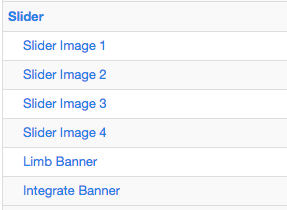
- Add sub pages under the parent menu to add new slider images. Note: Refer to Add New Sub Item/ Sub Menu help document.
-
The sub page must have a live page that has a top content image.
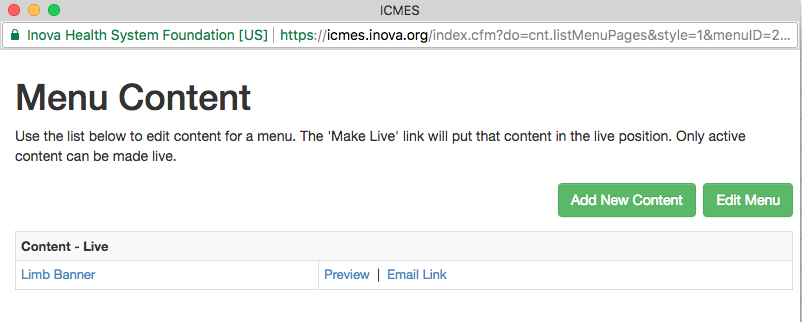
-
The image for the slider is pulled from the active menu page's top
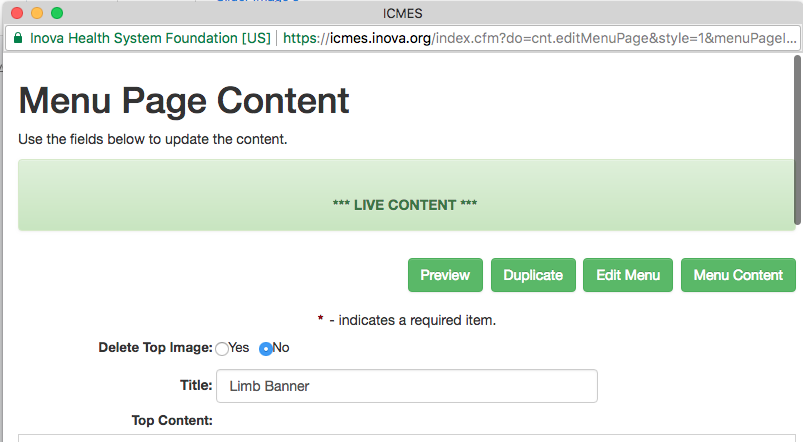
- Inactivate the sub menu to remove the image from the slider
Related Articles
How to Add questions with an image
To add images to the form questions Go to Web Content > Files Click on Choose File and select the file on your system. Click Submit Once the file is added copy the file link Now, go to the form and click Add Question or go to the edit page for the ...Edit Content Page
Step 1: Go to Web Content > Site Map > click 'Edit Content' next to the Menu Title you want to add content to -OR- Step 1: From the 'Edit Navigation' page, click 'Edit Content' Step 2: Select the existing Content Title you want to edit, or click 'Add ...Edit Form Settings
To edit Form Settings, go to Settings > Forms Click on the Form Name (or click 'Add New Form' to build a Form from scratch) Click on 'Edit Form' Edit Form Definitions Form Type There are all kinds of different forms with different uses! The Most ...Edit Form Settings
To edit Form Settings, go to Settings > Forms Click on the Form Name (or click 'Add New Form' to build a Form from scratch) Click on 'Edit Form' Edit Form Definitions Form Type There are all kinds of different forms with different uses! The Most ...Add New Content Page
Step 1: Go to Web Content > Site Map > click 'Edit Content' next to the Menu Title you want to add content to -OR- Step 1: From the 'Edit Navigation' page, click 'Edit Content' Step 2: Click 'Add New Content' Step 3: Add the appropriate content and ...