How to add a wizard step
A wizard made up of one or more steps to guide the user through the completion of certain requirements when the user logs into the system.
Different wizard steps can be added for different participant types. Participant type is a setting on a person's profile to ensure the type has access to the specific functionality that it should, i.e. Attendee, Speaker, etc.
Action steps that can be added into the wizard flow:
- Password Update
- Profile Update
- Bio Update
- CV update
- Note: The CV step is a special step that is not managed the same way as the others. The wizard step is automatically completed and skipped if the profile already has a document. We can also set it up to be skipped, but it will continue to be asked if the document has not been uploaded.
- Ask Once forms - forms setup as below on the 'Edit Form' page.

- Ask Once per Activity forms - forms setup as below on the 'Edit Form' page.

How to create a wizard:
Go to People > Wizards
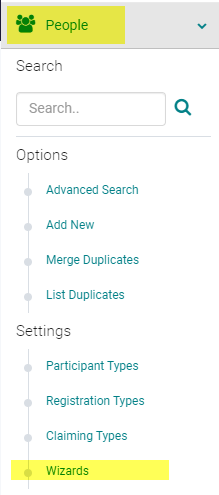
Click on 'Add New Wizard'

Name: Enter a name for the wizard
Type: Select the 'Participant type' and 'Save'
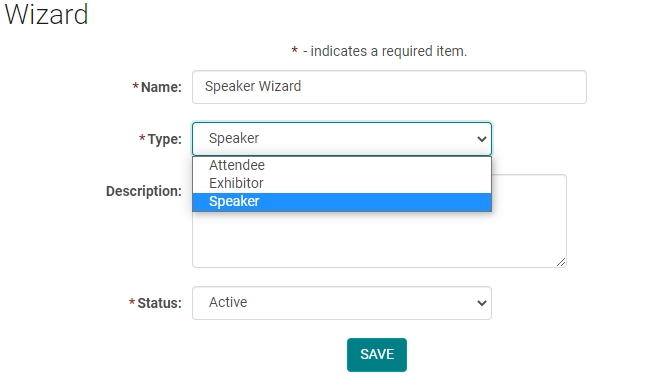
Once you save the page, you will see another field named 'Security level'. Anyone who is assigned to an Activity or Session role would be automatically set to the Speaker 'Type'. Our system treats Reviewers, Submitters, and Presenters as 'Speaker' type. However, we assign them a different security level to ensure certain functionality. So, DO NOT edit this.

When you are setting up a Speaker wizard for the security level '9', this is not applicable to Reviewers and Submitters.
How to add steps to the wizard:
From the wizard edit screen, click "Add New"

Title: Enter a name for the wizard step
Step Number: when you have more than one wizard step for this type, the step number determines the sort order for this action.
Action: As discussed above, select the action (password update, profile update, forms....)
'Save'
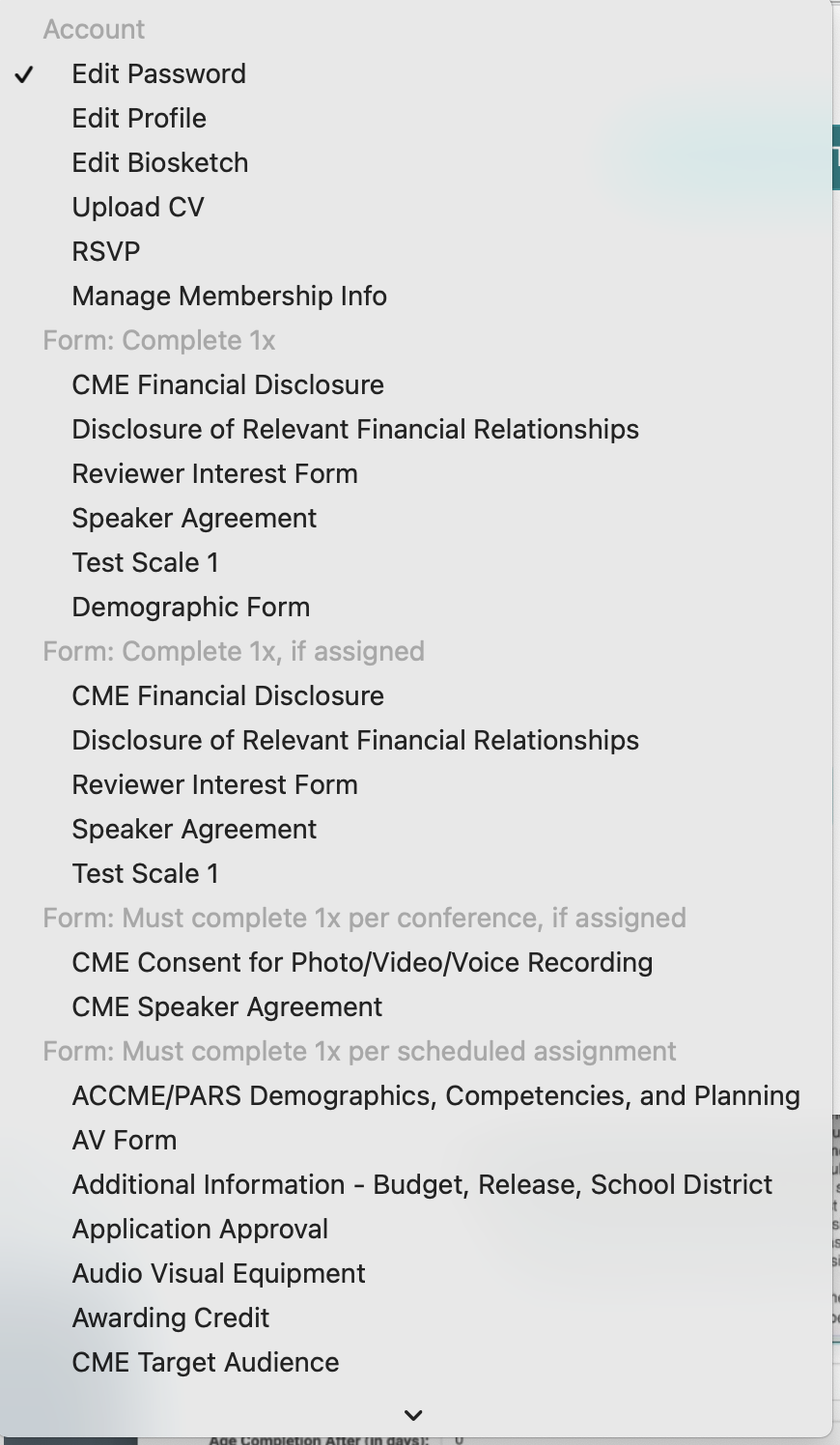
Note: The forms must be selected on the role. Regarding the Ask Once per Activity forms, if you desire the form completion to be restricted to the Speakers on a specific Activity, this form must be added to the 'Manage Forms' section of that activity. If this is not done, the form would show as a requirement for all users assigned to that role.
When selecting the form for a wizard action step, in order for you to easily identify the nature of the form, next to the form title you would see an indicator like (Must complete 1X), (Must complete 1X per planner) or (Must complete 1X per scheduled assignment)
- Form: Complete x1 - an Ask Once form
- Form: Complete x1, if assigned - an Ask Once form that the speaking role will be prompted to fill out ONLY if the form is assigned for their role.
- Form: Complete x1 per Activity, if assigned - an Ask Once per Activity form
- Form: Complete x1 per scheduled assignment - Ask Many form that the speaking role will be prompted to fill out for EACH of their speaking assignments.
Related Articles
July 2021 Release Notes
The below product updates are scheduled to go live July 6, 2021. Release notes for each update will be added here once it is available in your test environment. Wizard Step: Ask Once per Scheduled Assignment: Users can be prompted to fill out Ask ...Add New Content Page
Step 1: Go to Web Content > Site Map > click 'Edit Content' next to the Menu Title you want to add content to -OR- Step 1: From the 'Edit Navigation' page, click 'Edit Content' Step 2: Click 'Add New Content' Step 3: Add the appropriate content and ...Add Metadata for SEO
NOTE: Your Project Manager must have the Metadata feature set up when deploying your web site. STEP 1: Go to Web Content > Site Map STEP 2: Click on the Title of the Menu you want to add Metadata to. (or click 'Add New Menu' to start from scratch - ...Add New Session/Event
Note: Prior to adding a Session you need to add the Activity. Select the Activity you want to add a new Session/Event to using the Activity Switcher Go to Sessions (or Events) and click 'Add New' Field Definitions: Type = Select the type of the ...Add New Menu
Step 1: Go to Web Content > Site Map > Add New Menu Step 2: Complete Appropriate Fields and Click 'Save' Field Definitions: Parent – To be selected if you are creating a submenu. This will determine which main menu the submenu appears under. This can ...