Forms: Link to External URL
Application and Speaker forms can link to an external URL by following the below steps:
- Find the form you want to link to an external URL or create a new one.
- Click “Edit Form”
- Enter the URL in the “Form URL” field.
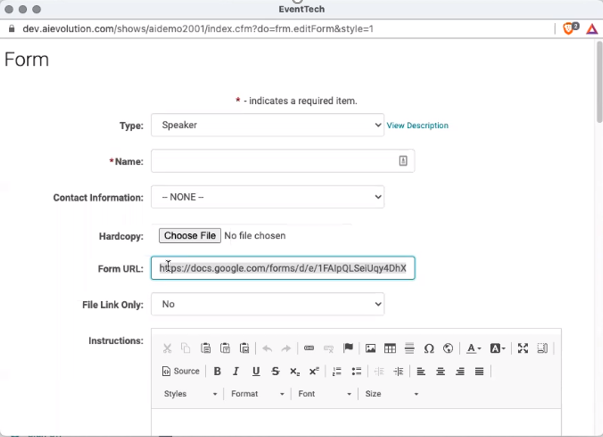
Upon clicking the form name, the submitter or speaker will be taking to the external URL in a new tab.
(Note: if you have also uploaded a hard copy file, the system will display the hard copy, not the external URL).
Because our system does not know when the external URL form is complete, we recommend the following steps as best practices:
- On the same form you have entered the external URL, add an admin only Yes/No question that asks “Is the form complete?”.
- When viewing a submission or speaker ready room from the admin, the admin user will see a subsequent link (beneath the link to the external URL) with the Yes/No question. The admin user can review the external URL and mark “Yes” when they confirm it has been completed.

Related Articles
Forms: Link to External URL
Application and Speaker forms can link to an external URL by following the below steps: Find the form you want to link to an external URL or create a new one. Click “Edit Form” Enter the URL in the “Form URL” field. Upon clicking the form name, the ...Add Quick Link Code / Vanity URL
STEP 1: Go to Web Content > Site Map STEP 2: Click on the Title of the Menu you want to add a Quick Link Code / Vanity URL to (or click 'Add New Menu' to start from scratch - see related article on how to add a new menu) STEP 3: Enter the text and/or ...October 2021 Release Notes
The below product updates are scheduled to go live October 4, 2021. Release notes for each update will be added here once it is available in your test environment. Note: We did not have a September 2021 release due to the size and timing of our ...Exhibitor Setup
Exhibitor Setup Checklist: 1) Create/Add a form to collect the Initial Exhibitor Request 2) Make the form available for the public to submit requests. 3) Review the Request form 4) Create an Exhibitor account 5) Open Exhibitor Meeting times Step 1: ...Creating Event/Session and Speaker Evaluation Forms
Go to Settings > Forms Click the 'Add New Form' button From the 'Type' drop-down list, select 'Session Evaluation' Complete the following fields: Name = Form name that will appear on the website for users to complete Required = Yes Speaker Ask Once = ...