Creating Event/Session and Speaker Evaluation Forms
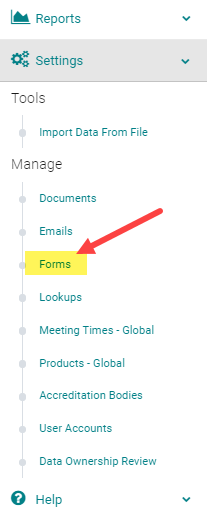
Go to Settings > Forms
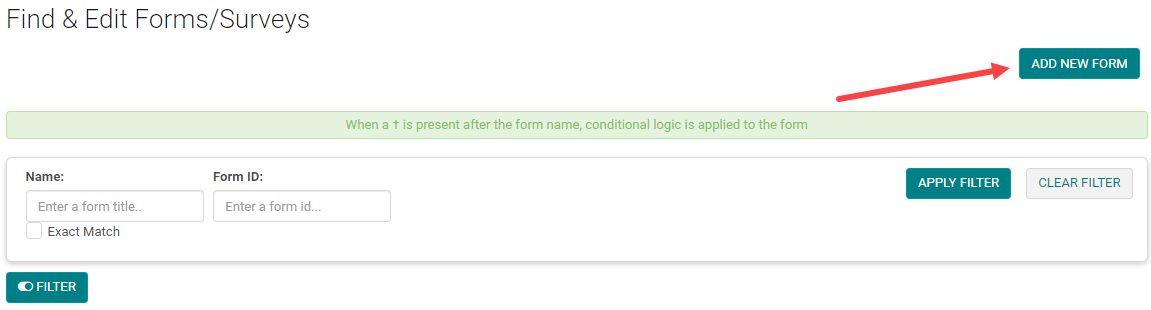
Click the 'Add New Form' button
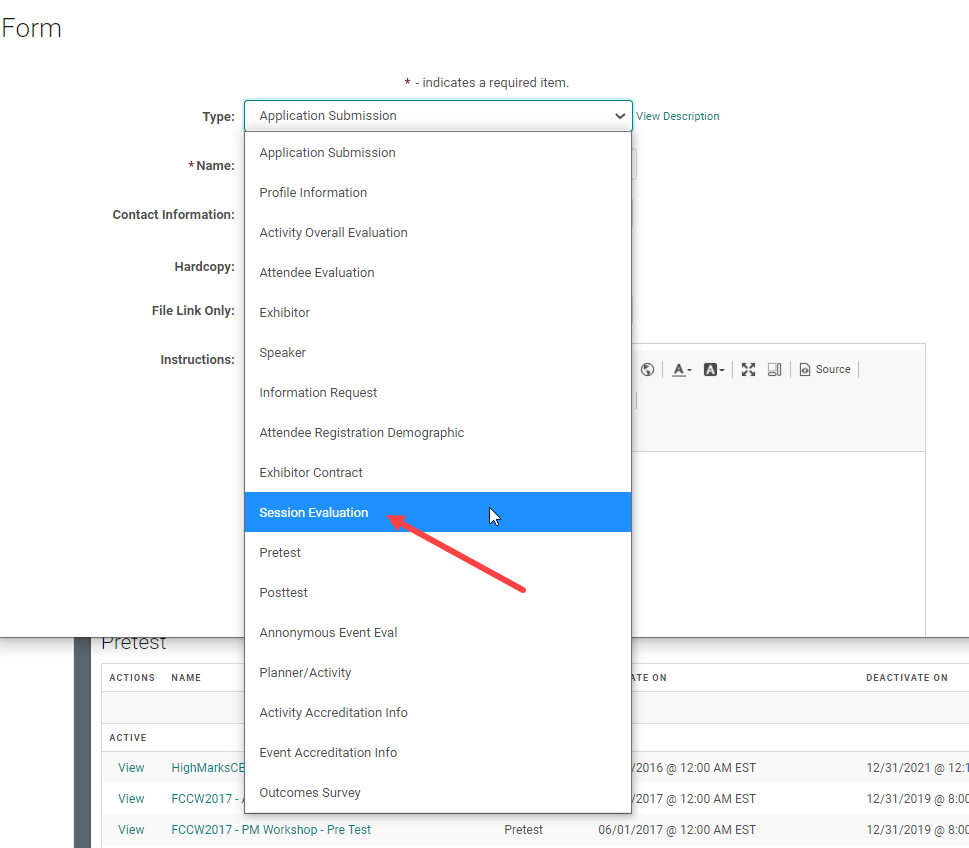
From the 'Type' drop-down list, select 'Session Evaluation'
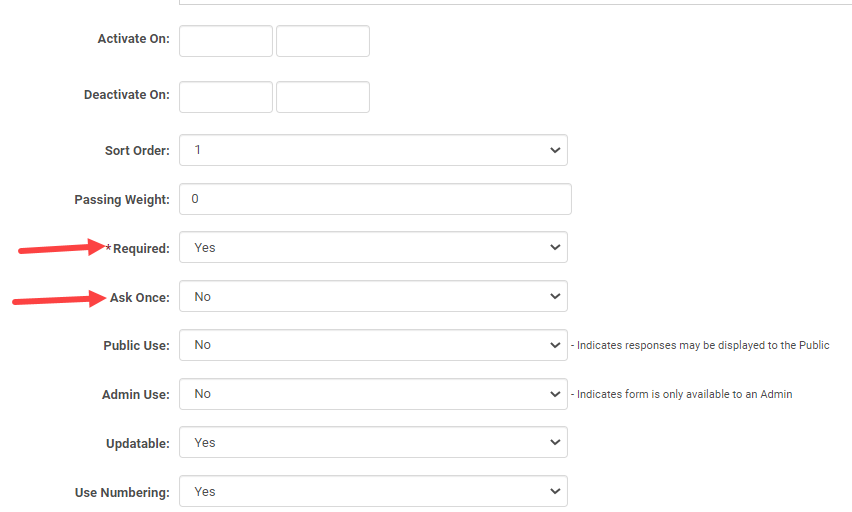
Complete the following fields:
- Name = Form name that will appear on the website for users to complete
Required = Yes
Speaker Ask Once = No (if the Form will be used for multiple Events/Sessions)
Enter any other required fields and/or content and click 'Save' at the bottom of the screen to build your new form.
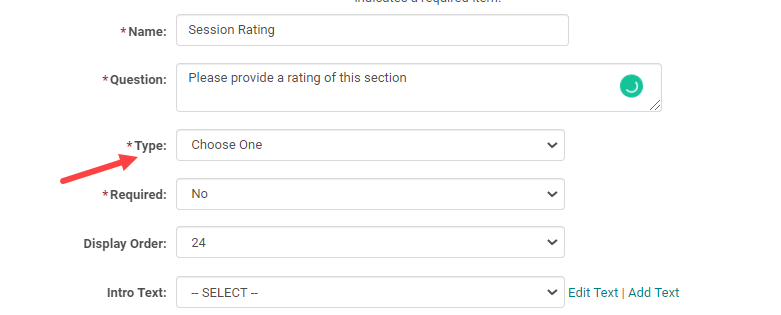
Click on the 'Add Question' link

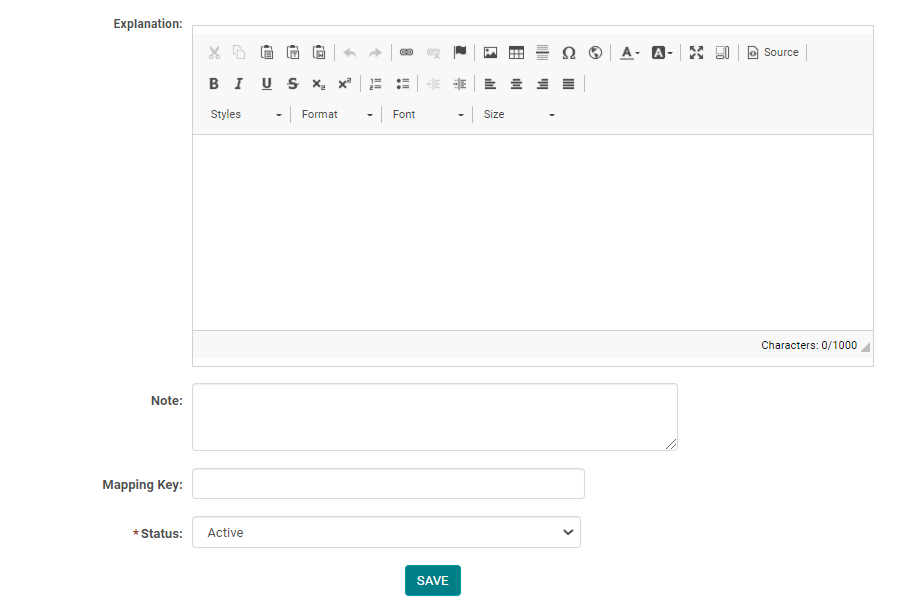
Complete all the required fields. Click here to know what each Question Type mean. Click 'Save' to create your question and repeat the steps to add as many questions as needed. Question Type= Data Grid is not supported by the Session Evaluation type forms.
Adding Speaker Questions
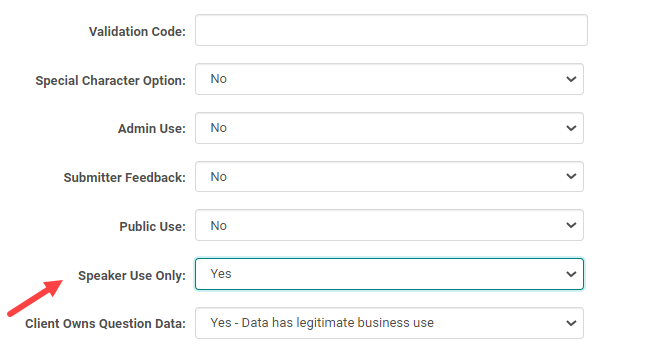
To add a Question for assigned Speakers (i.e., the question(s) will repeat for each assigned Speaker), add a question like you would normally do and update the 'Speaker Use Only' field to 'Yes'
NOTE:
You must have at least ONE Speaker Use Only = No Question in order for the Form to be available for users to complete. If you are using session evals just for the Speaker questions, please reach out to you PM to see if the site settings can be updated.
Speaker questions cannot be used on Activity Overall Evaluations. Activity Overall Evaluations do not pull the Speakers assigned to the Sessions/Presentations.
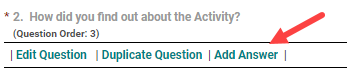
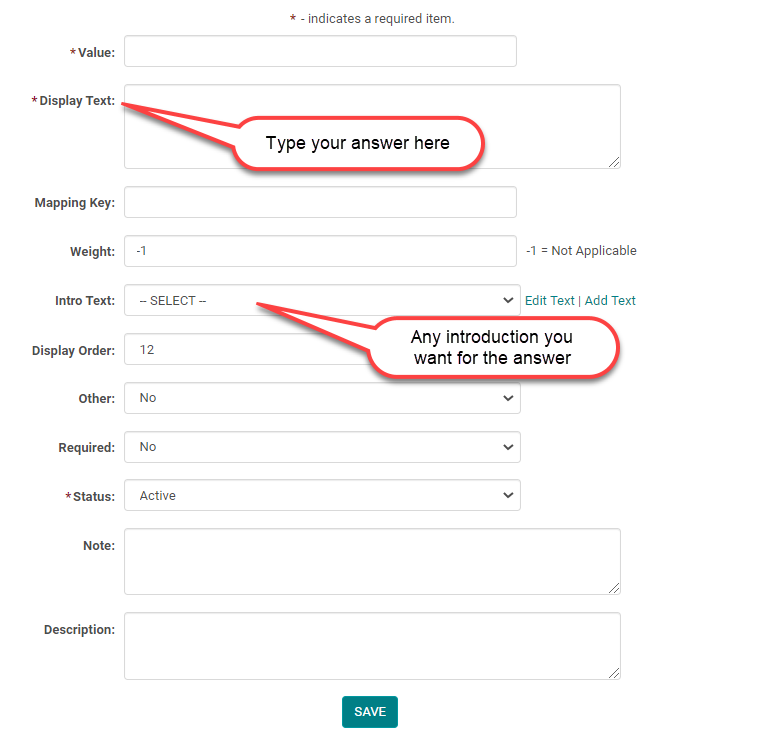
Click the 'Add Answer' link next to the appropriate question
Enter the required fields and any other necessary data. Click 'Save' to add the answer and repeat the steps to add as many answers as needed. Click here to know what each form answer field mean
Note: If you want to show Learning Objectives on the Evaluations, please reach out you your Project Manager. This setting has to be turned on for your site. Make sure the Session/Presentation being evaluated by the Speaker have objectives assigned.
Related Articles
Add New Session/Event
Note: Prior to adding a Session you need to add the Activity. Select the Activity you want to add a new Session/Event to using the Activity Switcher Go to Sessions (or Events) and click 'Add New' Field Definitions: Type = Select the type of the ...Event/Session Type
To add or edit an Event/Session Type, go to Sessions (or Events) and click on 'Session Types' (or Event Types) To edit an existing Type, click on the name of the Type. Or, click on the 'Add New Type' Complete the required fields and click 'Save' ...Event Speaker Evaluations
Credit Surveys Summary by Speaker (Summary - ALL) or (Summary) – Select the Form; Activity and Session and run this report for the evaluation summary broken down by each speaker under the selected Activity and Session. This report does not show the ...Manage Forms
To associate Type = Speaker Forms to an Activity for use in the Speaker Ready Room, use the Activity 'Switch' or go to Activities > use the text search option or 'Advanced Search' NOTE: make sure you have associated the Type = Speaker Form to the ...Manage Forms
To associate Type = Speaker Forms to an Activity for use in the Speaker Ready Room, use the Activity 'Switch' or go to Activities > use the text search option or 'Advanced Search' NOTE: make sure you have associated the Type = Speaker Form to the ...