Form Conditional Logic
This article will show you how to configure Form Branching by adding Conditional Logic to the form. In order to avail the Conditional Logic feature it needs to be turned on for each site.
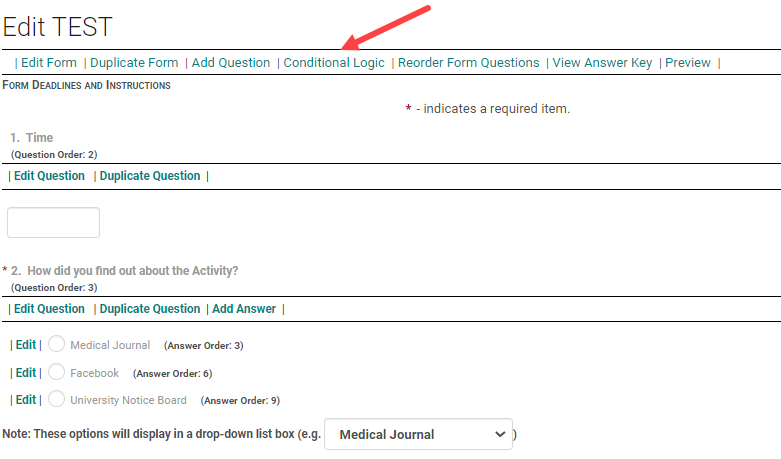
Step 1: Add all the questions to the form like you would normally do. The 'Conditional Logic ' link will appear only when the form has one required question and one that is not required . Click on the 'Conditional Logic' link.
Step 2: Click on 'Add Condition'

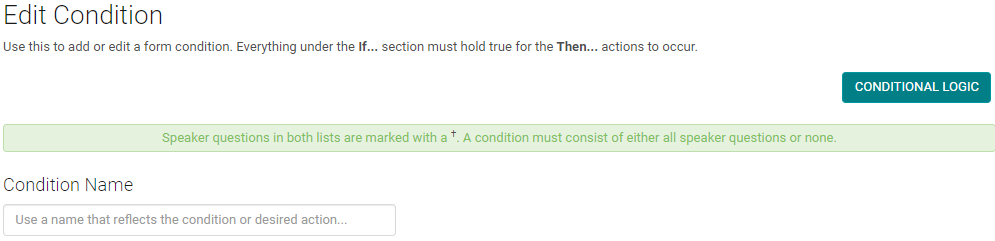
Step 3: Give a name to the Condition. Name it in such a way that is easily identified by you when you want to make edits to the conditions on a later date. click on 'Add Expression'
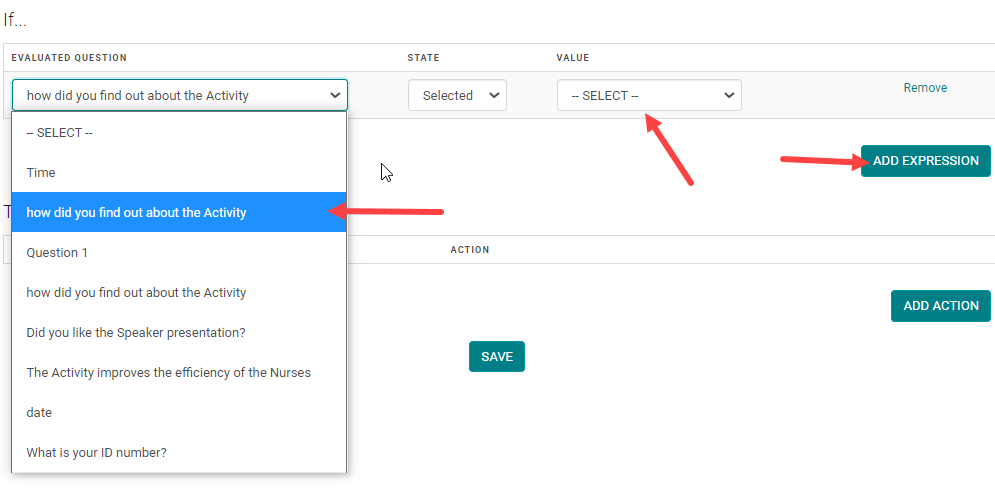
Step 4: Click on 'Add Expression'. Select the name of the question from the ' Evaluated Question' menu and from the 'Value' menu select the answer for which you want the conditional question to show up.
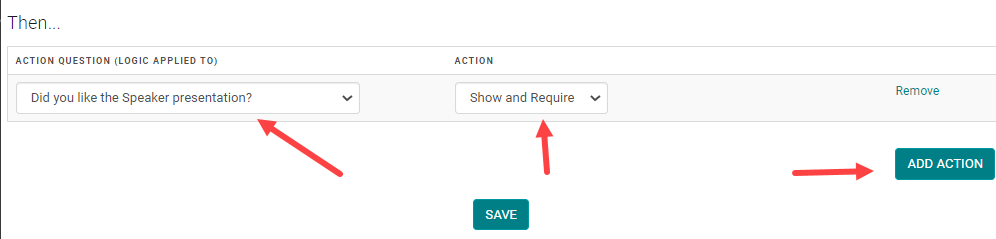
Step 5: Click on 'Add Action'. Select the name of the conditional question from the 'Action Question' menu and select the required action from the 'Action' menu .
Action Options - Show= will show the question, but people are not forced to answer.
Show and Require = Will show the question and the answer is required.
Step 6: Once you are sure that you have selected correct questions and added correct conditional questions, click 'Save'
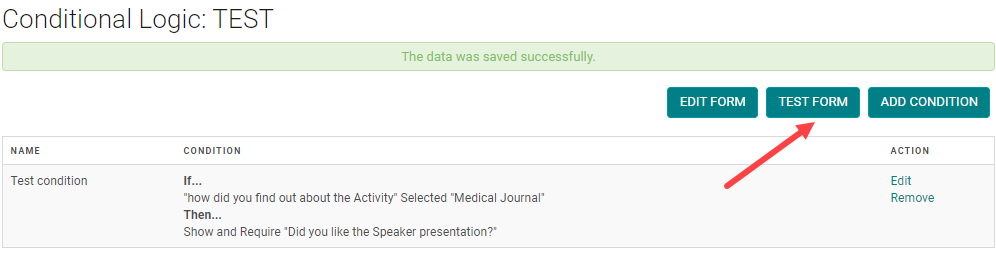
All the form conditions are listed here. You have an option to 'Edit' and 'Remove' the conditions.
Step 7: Click on 'Test Form' to test if the conditions are working.
How does the conditional logic on a form work?
Initially the form will only show the parent questions and not the conditional questions.
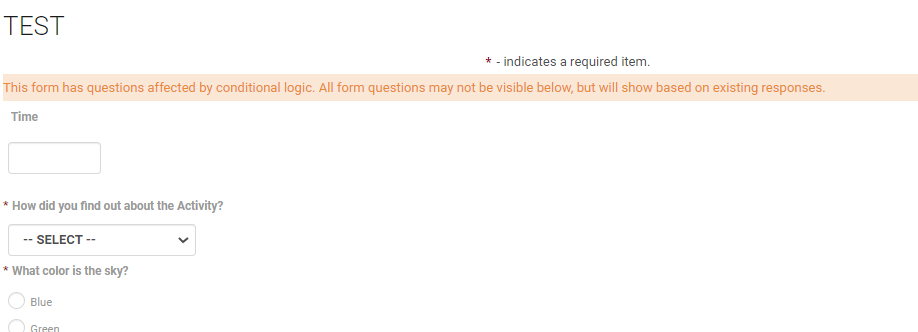
Select 'yes' for the parent question, the conditional question for answer value 'Yes' will show up
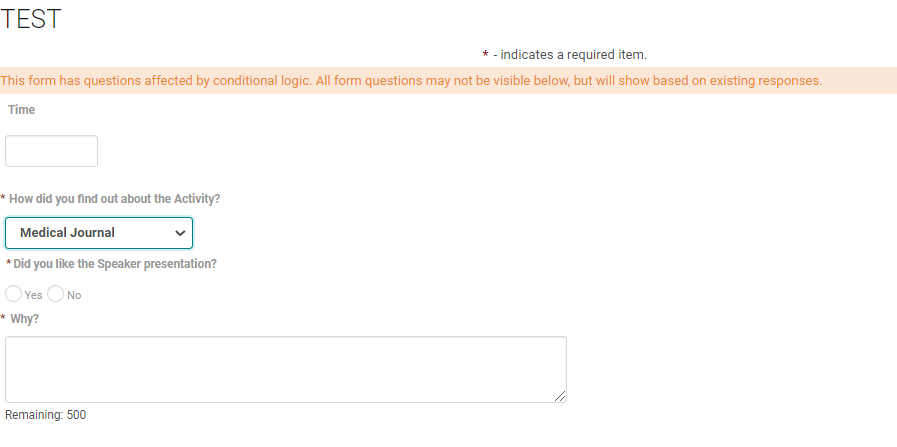
Select 'No', the conditional question for answer value 'No' will show up.
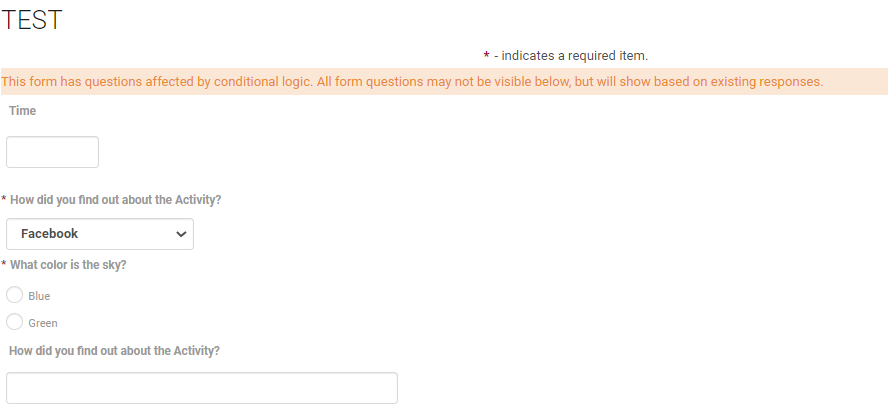
You can observe that based on the answer selection the conditional question varies. If you do not want any questions to show upon certain answer selections do not include them in the conditional logic.
Related Articles
Form Branching
Form Branching allows admins to link a Form Answer to the next Form Question a user should complete. i.e., users can skip to a question based on the answers they provide. There are a few best practices to follow when using Form Branching: Form ...Form Reports
PRIMARY FORMS REPORTS: 1. Respondents: Select the form -Responses not Given/Responses Given and the Assigned role. Note: Do not include the Activity/Event filter in this search. This report runs against an Ask Once Form and queries all the people ...Form Answers
Important fields information Value The name of the answer, and how it will look on reports. Display Text What text will appear next to the check box or radio button. Answer Weight This field is used for weighted forms and is very important to fill ...Form Answers
Important fields information Value The name of the answer, and how it will look on reports. Display Text What text will appear next to the check box or radio button. Answer Weight This field is used for weighted forms and is very important to fill ...Form types
Here are the different kind of forms supported in HighMarks CE System. Application Submission: Forms uses on abstracts and Applications. These are completed as apart of Application Submission process. Activity Accreditation Info: Forms to collect ...