Registration Types
Registration types are used to categorize attendees. Exhibitor, Member, Non-Member, Student, Resident, Intern, Employee, Admin Staff etc are the typical Registration types.
How to add Registration Types:
On the Admin navigation menu click on 'Registration Types' under People category
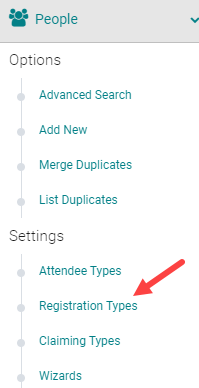
Click on 'Add New Registration Type'

Enter the required information.
Name: Name of the registration type
CPE Participant Type: Used in conjunction with the 'CPE Monitor Report'. They correspond to types/codes that are used for output of that report
Physician/Nurse/Pharm/Pharm Tech: These flags are used in PARS/JA-PARS counts
Registration Use: Yes
Note: Except the Name and Registration Use, ignore all other flags and just leave them set to 'No'. All these fields apply to the Claiming type setup only.
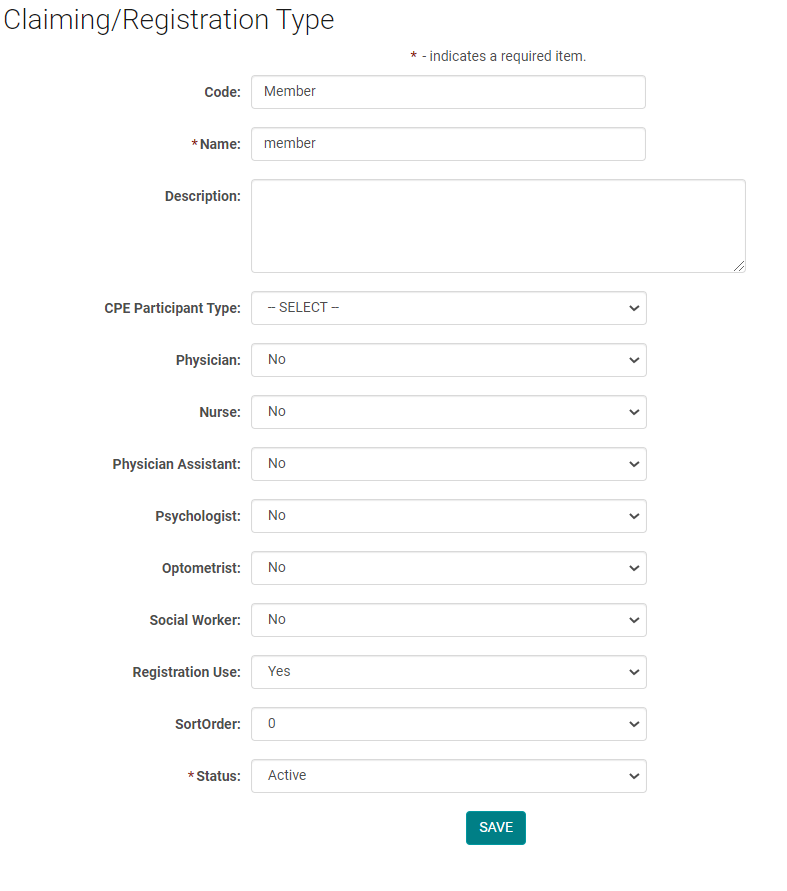
Save all the changes.
How to use these Registration types
You may want to use these under two scenarios:
Scenario 1: there is a Registration fees involved and it varies from attendee to attendee. For example, Member vs Non-Member Or Physician Vs Non-Physician etc.
Scenario 2: there is no Registration fees, but still would like to track the registration based off the attendee category.
1) Go to the Activity dashboard and click on Manage Registration Products (it is located under 'Registration' tab on the updated dashboard) to add the Registration types for the Activity. Here you will select the required reg types from the reg type list added to the entire site.
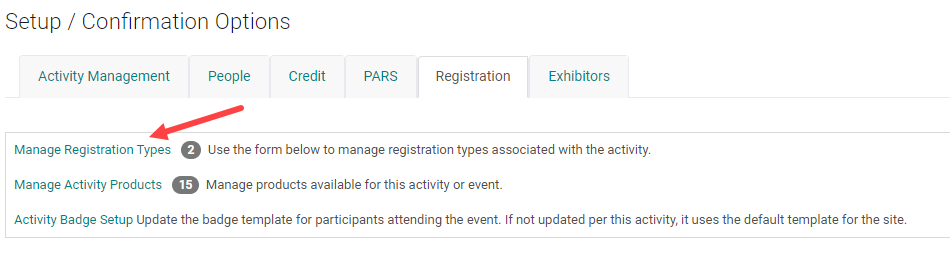
2) Once you have added the required reg types, go to the Products page
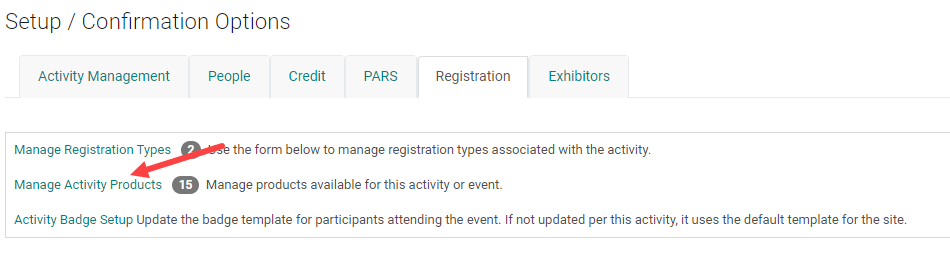
3) Select the product to link the reg types relevant to the product.

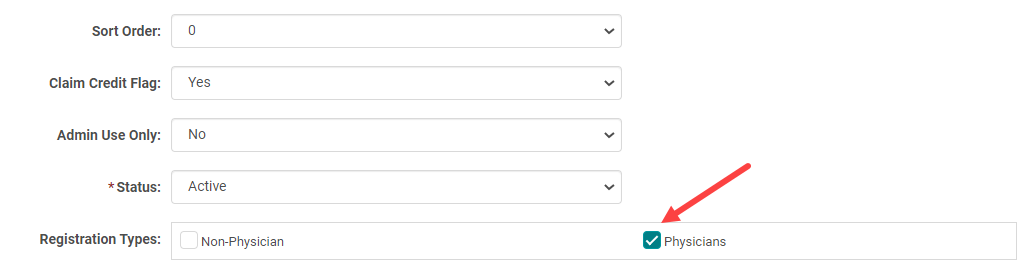
4) This way only the users who identify as 'Physicians' (this example) will be able to register via this product.
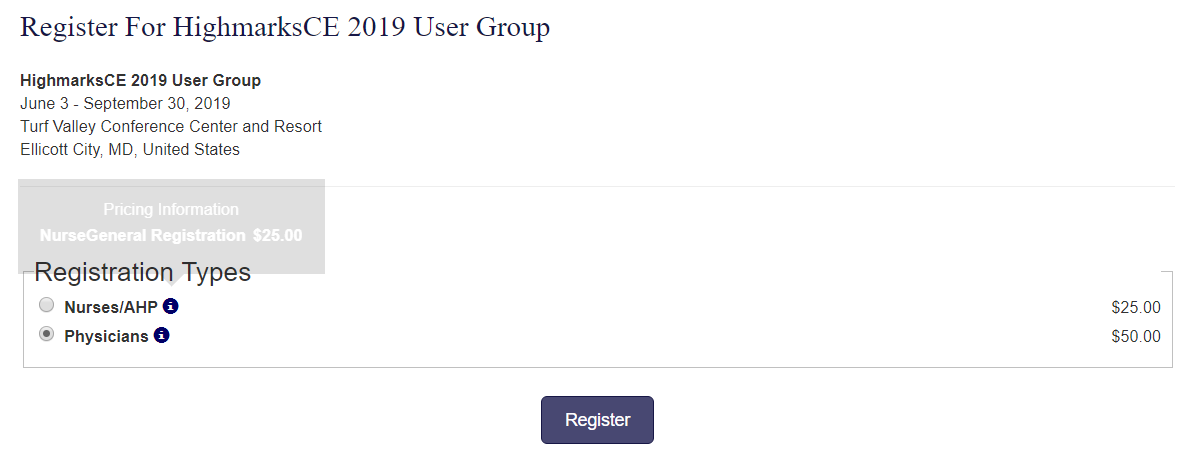
Note: When you add Registration types to the Activity, but do not select them on the products, none of the reg products will be available to the front end users.
So, if you do not want to use the reg types, either because you do not have separate reg products for different attendee categories or you do not need to track the registration count by attendee category, DO NOT add them to the Activity at all.
Related Articles
Import Data - Registration
Registration import functionality is used To import registration records where there are registration products involved. This option will import the people as registrants (ActRegistrant), and add orders for the specified products. To import ...How to Set-up Registration for Courses
Registration setup Check list: 1) Add the Registration types - Optional (Required if you have different registration products for each type and you want people to identify their type, which allows them to see the applicable products only) 2) Add the ...How to Set-up Registration for Courses
Registration setup Check list: 1) Add the Registration types - Optional (Required if you have different registration products for each type and you want people to identify their type, which allows them to see the applicable products only) 2) Add the ...Form types
Here are the different kind of forms supported in HighMarks CE System. Application Submission: Forms uses on abstracts and Applications. These are completed as apart of Application Submission process. Activity Accreditation Info: Forms to collect ...How to Add Product Sub types
Add a product subtype under two different situations – 1) When you have more than one session in an Activity. In the screenshot below you can see there are four sessions happening on a single day. As per the setup attendees register for the Activity ...