Import Data - Attendance
Attendance import functionality is used
- To import registration records where there are no registration products involved
- To import Attendance directly into the Sessions. (This option is enabled per site)
Go to Activities > use the search box or click 'Advanced Search' to find the Activity you want to import data to
Click on the Name of the Activity and click on "Select Activity"
From the Activity Dashboard go to People > Import Data
Steps to Import Data
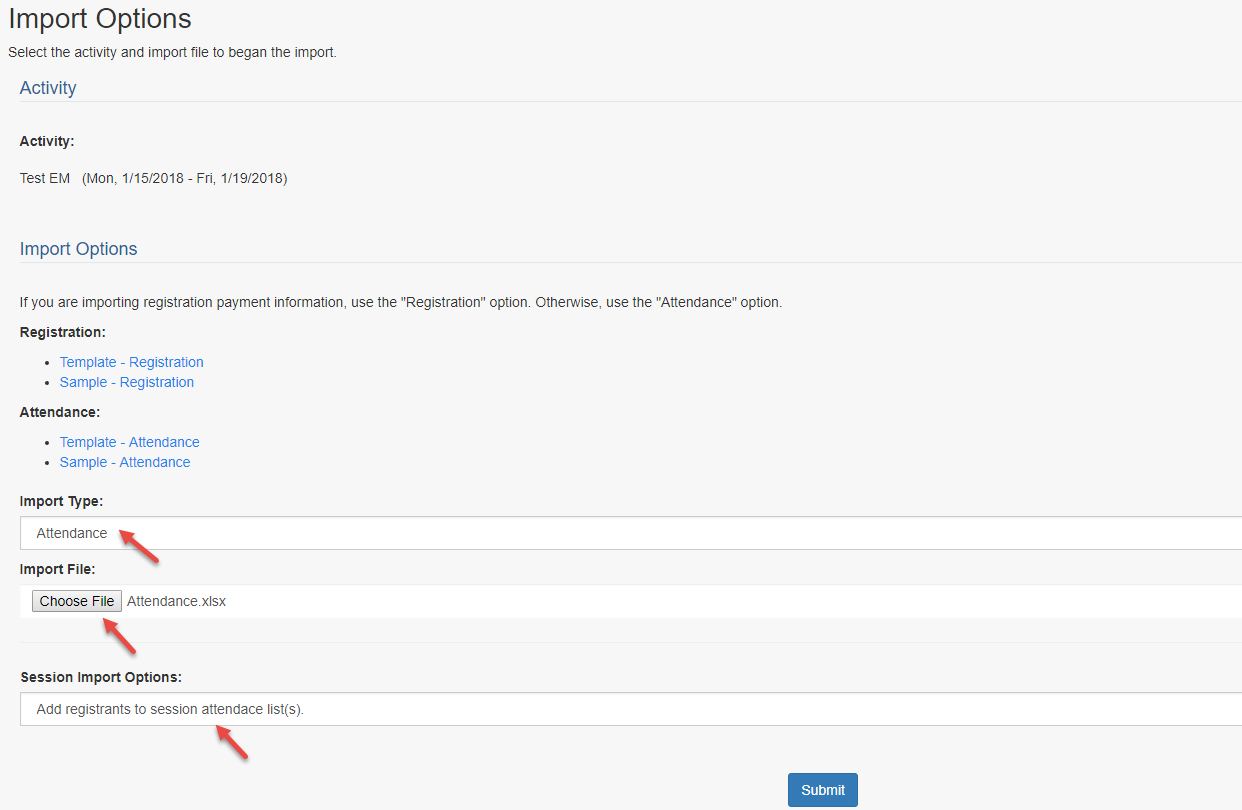
STEP 1: Import type - Select Attendance Import Type.
STEP 2: Import File - Click on the 'Choose File' button and browse your computer for the data file you want to import. Click Submit.
STEP 3: Session Import Options - This option is enabled per site to import the attendance records to the Attendance Management of all types of sessions and to the Roster Management of Enduring Material Sessions.
NOTE: Do not refresh your screen or let your computer go to sleep while the system is validating import options.
If you receive an error message, you will need to correct the data in the original file and start from STEP 1 again.
STEP 4: Based on your site customization, as per STEP 3, at this step you get to select which session's Attendance Management you would like to add the list of people.
Review the 'Import Summary' counts and click the 'Start Test Import' button.
NOTE: Do not refresh your screen or let your computer go to sleep while the system is running the test import.
STEP 6: Click on the 'Test Import' Excel file download link
Review the Test Import file - there will be a few additional columns at the end of the Excel data
Check the box to confirm you reviewed the data, and click the 'Start Live Import' button
NOTE: Do not refresh your screen or let your computer go to sleep while the system is running the live import.
STEP 7: Click on the 'Live Import' Excel download link
Review the Live Import file - there will be 2 additional columns at the end of the Excel data
Review the 'Import Summary' to confirm the data counts are correct
The data imported will either create a new profile or update an existing profile.
Related Articles
Import Data - Attendance
Attendance import functionality is used To import registration records where there are no registration products involved To import Attendance directly into the Sessions. (This option is enabled per site) Go to Activities > use the search box or click ...Import Data - Registration
Registration import functionality is used To import registration records where there are registration products involved. This option will import the people as registrants (ActRegistrant), and add orders for the specified products. To import ...Data Ownership Review
Ai began preparation for the EU's GDPR enforcement period many months ago. Our clients' data security is always at the forefront of Ai-Platforms design and support and GDPR is yet another step to secure your data. Ai created the 'Data Ownership ...Attendance Management - Add/Remove people from Session Attendance
Attendance Management is used to record users who attended a particular Event/Session. If using the CE/CME Module, participants can also be recorded in an Event/Session with the appropriate Credit/Hours. Users will automatically populate in this ...Attendance Management - Add/Remove people from Session Attendance
Attendance Management is used to record users who attended a particular Event/Session. If using the CE/CME Module, participants can also be recorded in an Event/Session with the appropriate Credit/Hours. Users will automatically populate in this ...