How an Admin Adds Products to the Existing Orders
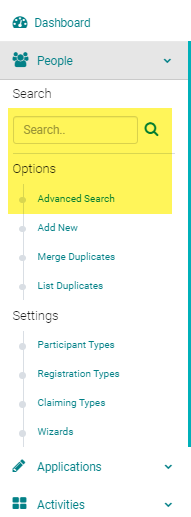
Go to People > use the search text box or 'Advanced Search' to find the person you need to cancel
Click on the name of the person
Click on the 'My Orders' button
If the value of the new product is same the old product proceed to the below steps; otherwise make the
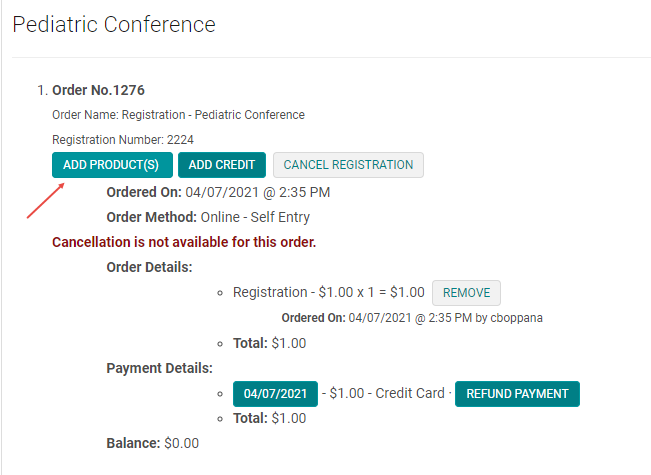
Under the correct activity, Select 'Add Product'
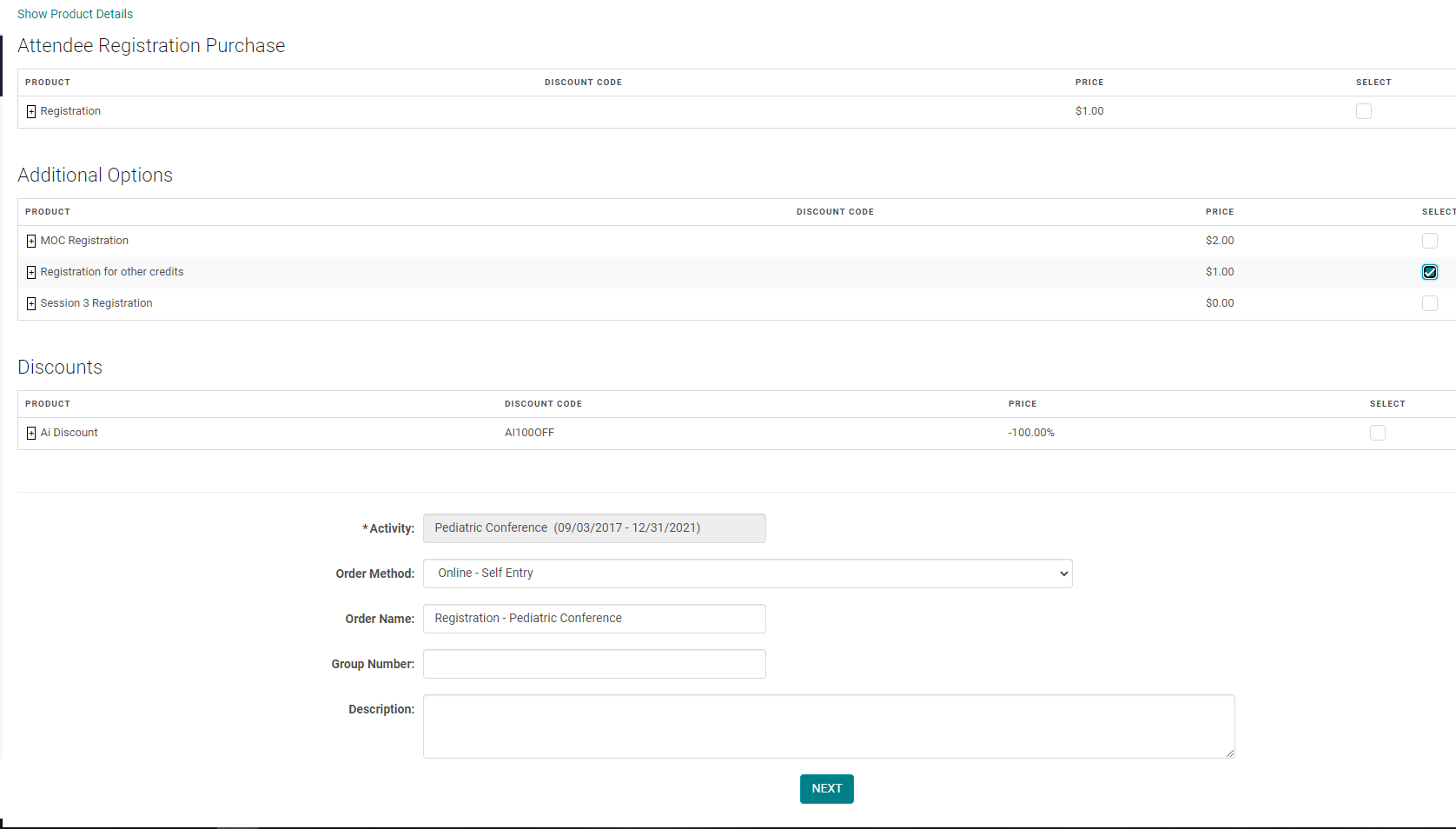
Select the new product for the registrant and click 'Next':
Enter a Note if needed, and click 'Save Changes'

The Balance is added and you must 'Add a Payment'
If the new product is in addition to the original product you leave bot the products. If it is a switch from the original product you can remove the original product.
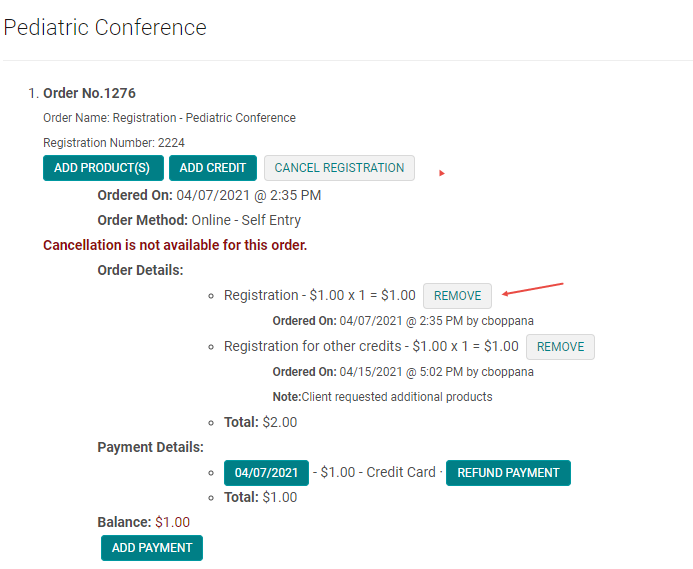
Enter a Note if needed and click 'Save Changes'

The Balance after the switch is adjusted if the both the products are of same value.

Please note: If you want the registrant to be able to pay by credit card through the online system, the order will need to be canceled completely and a refund applied so they can re-register. Otherwise, the admin can process any additional payment needed by obtaining the credit card information from the registrant and clicking 'Add Payment', or apply payment via other payment options available on your site (check/transfer, etc).
Related Articles
How to add Activity Products
From the Activity, click on ‘Manage Activity Products' Click on the ‘Add Product’ button For Registration Fees, enter the required fields and: Flag Product Type = Attendee Registration Purchase Name: Name of the product Available On/Discontinued On = ...How to add Activity Products
From the Activity, click on ‘Manage Activity Products'. Click on the ‘Add Product’ button For Registration Fees, enter the required fields and: Flag Product Type = Attendee Registration Purchase Name: Name of the product Available On/Discontinued On ...Admin Dashboard - System Deadlines
Here is a brief description about what is shown under each of these headers on Deadlines section of the Admin Dashboard. Upcoming System Deadlines Closes after today and within 30 days. System Deadlines (Just Opened) Opened within the last 14 days. ...Admin User Accounts - Manage Permissions
Follow the instructions to set up an Admin User Account (see related article). To restrict an Admin User Account's access to specific Activities, you will need to set the Admin User Account to Role = Standard. The next step is to select the ...Add New Admin User Account
Go to Settings > User Accounts Click on 'Add New User Account' Enter the required information and click 'Save' NOTE: Role = Admin - will give a user access to ALL Activities/Events in the system. Role = Standard - will require 'Manage Permissions' to ...