Creating Pre and Post-Test Forms
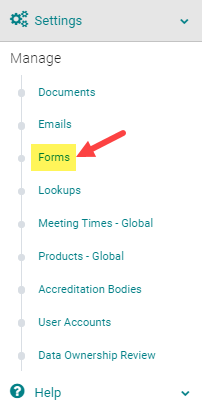
Go to Settings > Forms
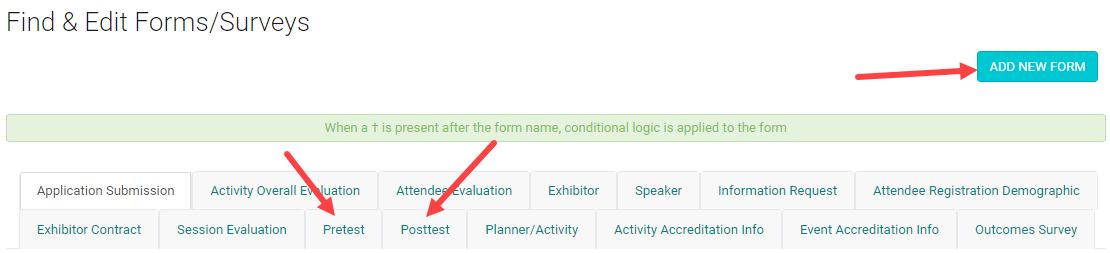
Click the 'Add New Form' button or click on the type of the form as shown below.
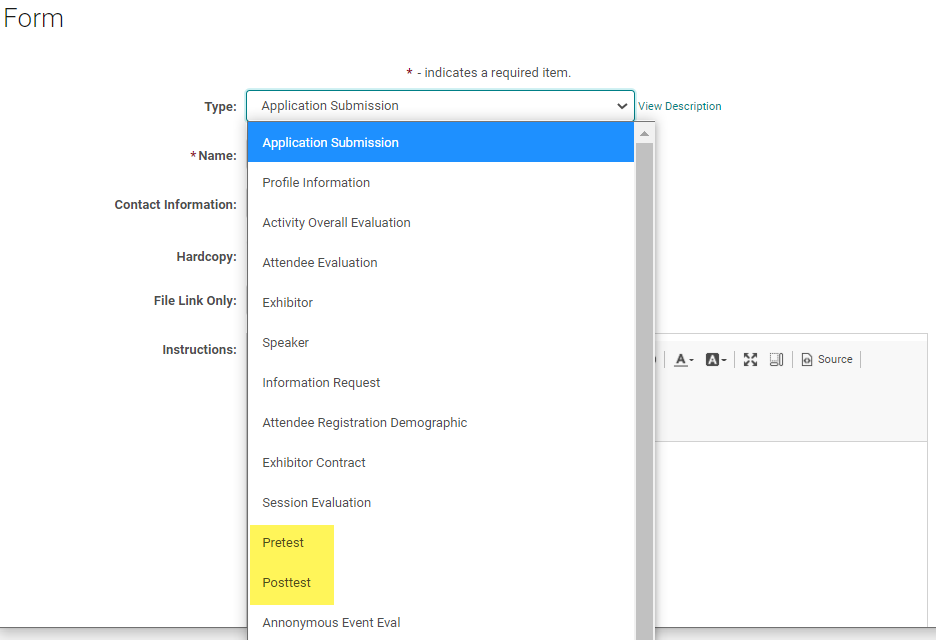
If you clicked on the 'Add New Form ' select 'Pretest or 'Post Test' From the 'Type' drop-down list
Complete the following fields:
-
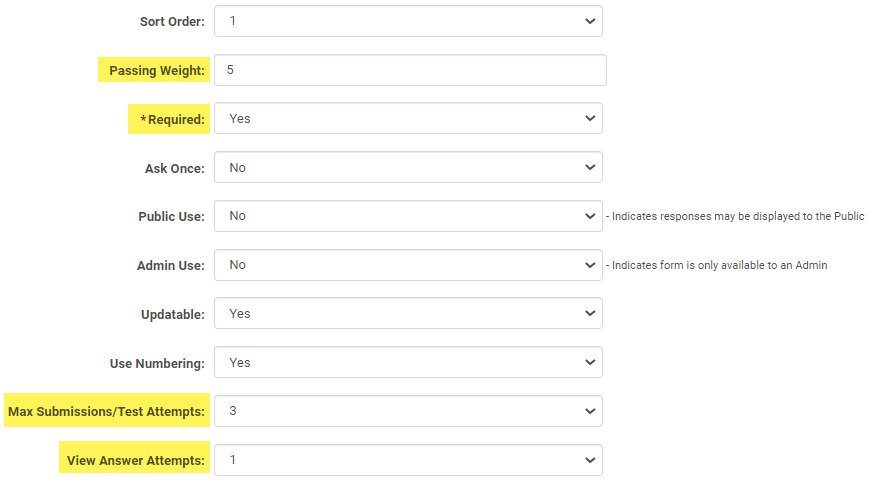
Passing Weight: Determine the 'Passing Weight'. e.g., If the test has 5 questions and each question is worth 1 point, you will need a 'Passing Weight' of 5 to get 100% correct.
-
Required = Yes
- Max Submissions/Test Attempts: Enter the number of attempts allowed to meet the 'Passing Weight'. i.e., how many times can a user fail the test before they are no longer allowed to proceed?
- View Answer Attempts: Used to show the correct answer(View Results link) . When an 'Answer Explanation' is added for Questions, users can view the answer explanation regardless of when the correct answer is shown.
NOTE: If you plan to use the test for more than one session, you need to flag the 'Speaker Ask Once' field to 'No' for reporting purposes.
Enter any other required fields and/or content and click 'Save' at the bottom of the screen to build your new form.
STEP 2: Adding Questions
Click the 'Add Question' link

Enter the required fields. Type= Choose the format of the question.
Note: Refer to the article 'Form Question Types' to know what each type/format means
Note: Refer to the article ' Pre and Post test - Allowed Question Types by Session Type' to know the question types allowed and can be scored.
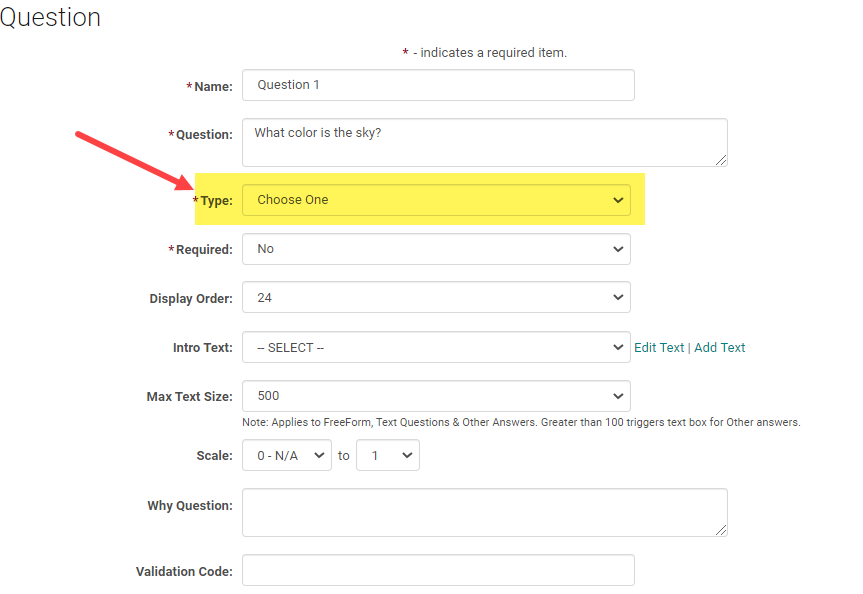
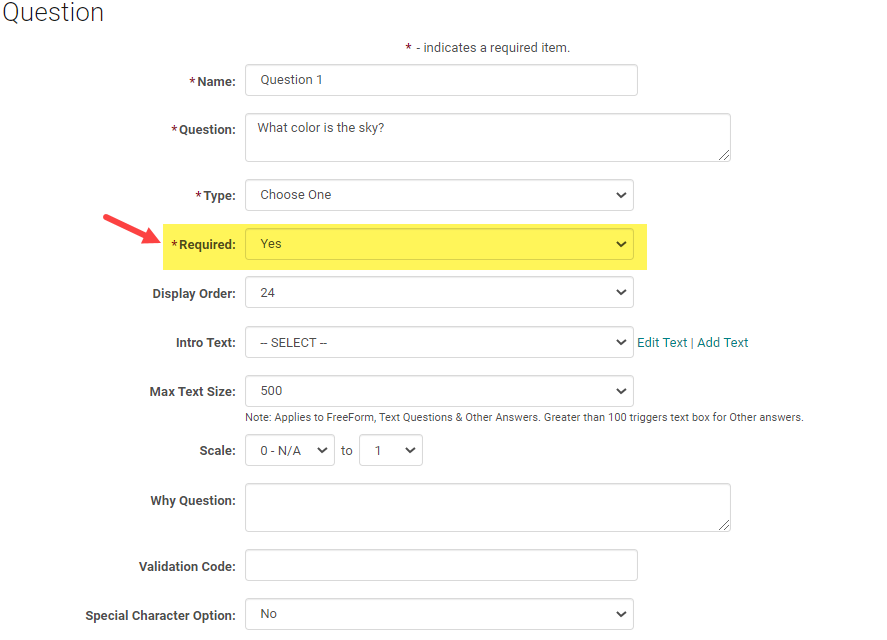
Flag the question as Required = Yes
Add the 'Answer Explanation. Users can view the answer explanation regardless of when the correct answer is shown. Show/hide of the correct answer is determined by the 'View Answer attempt' field set up.
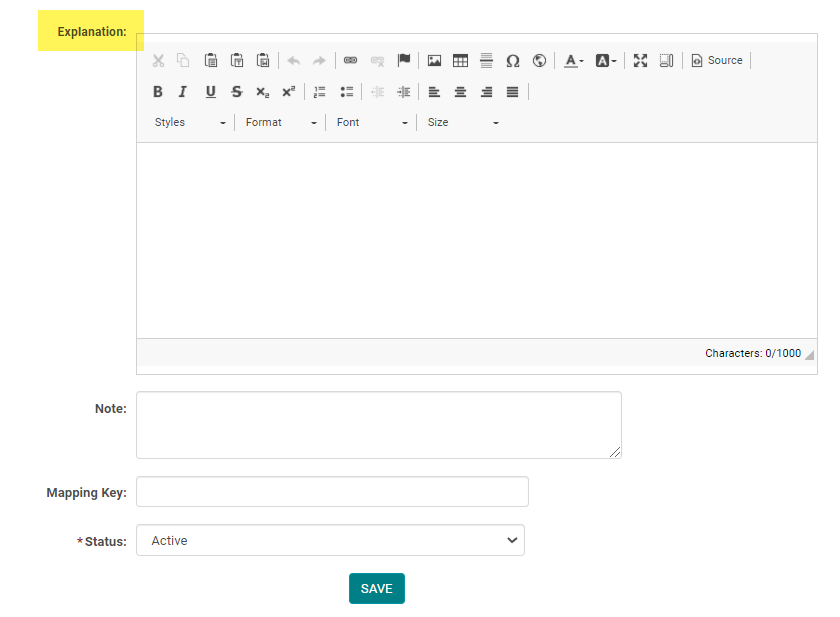
Click 'Save' to create your question and repeat the steps to add as many questions as needed
Note: Pre/Post test only shows either the question or the question narrative.
STEP 3: Adding Answers
Click the 'Add Answer' link next to the appropriate question
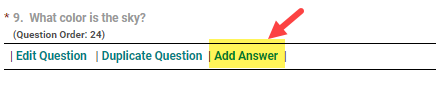
Enter the required fields and enter the appropriate 'Weight' for the correct answer. e.g., if the question is worth 1 point, enter a 'Weight' of 1 for the correct answer. All wrong answers will have a weight of -1 (n/a) or 0. Add up the weight of all the correct answers and enter as a Passing Weight on the Edit Form page.
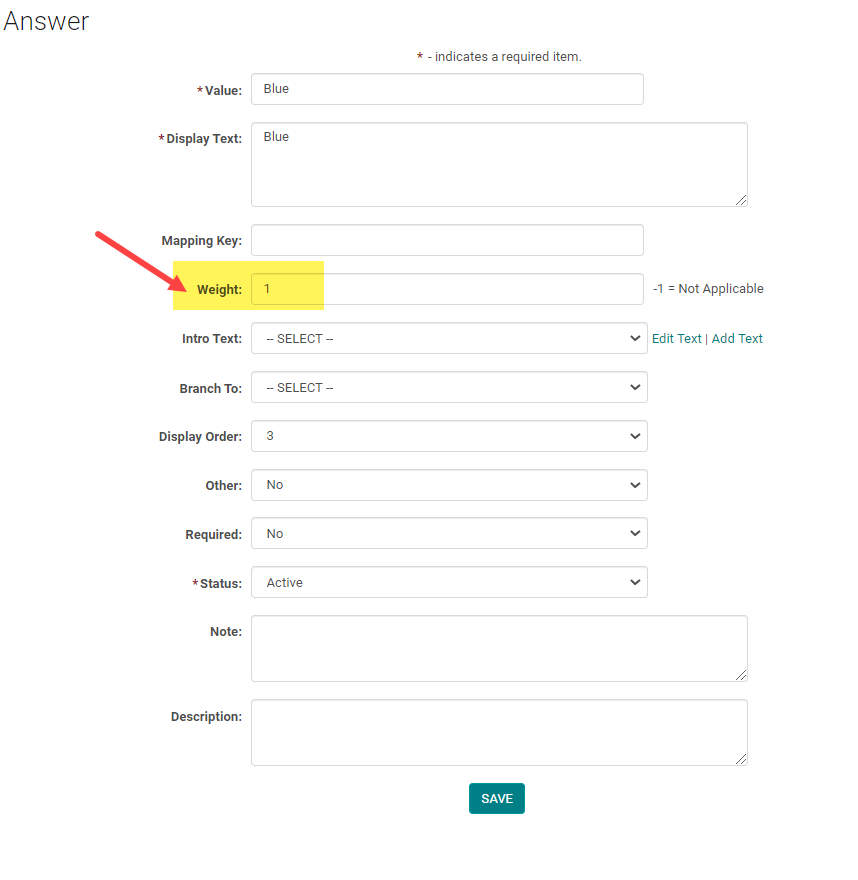
Click 'Save' to add the answer and repeat the steps to add as many answers as needed.
Viewing Answer Key:
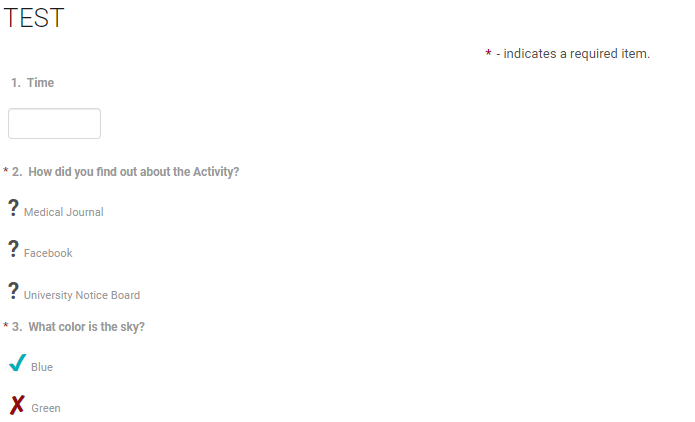
To the test taker the View Results functionality shows the correct and incorrect answers for each question based on the answer weights.
- If the weight is negative, we don't know if it is right or wrong, so we show a question mark.
- If the weight is 0, we show an X.
- If the weight is more than 0 we show a check mark.
Related Articles
Creating Pre and Post-Test Forms
Go to Settings > Forms Click the 'Add New Form' button or click on the type of the form as shown below. If you clicked on the 'Add New Form ' select 'Pretest or 'Post Test' From the 'Type' drop-down list Give a name to the form. Complete the ...Pre and Post Test Form Results Report
To pull the test results for users who submitted a Form Type = Pre or Post-Test, go to Reports > Forms Under the 'Primary Form Reports' header, select the 'Test Results' report Select the appropriate Form(s) and click 'Run Report' NOTE: Use the ...Reset Person's Test Attempts for Activity Pre and Post-Test
If a user fails all test attempts, you have the option to reset their attempts. Go to People > use the text search option or 'Advanced Search' to find the user you wish to reset the test attempts for From the 'Action' column, click on 'My Credits' ...Reset Person's Test Attempts for Activity Pre and Post-Test
If a user fails all test attempts, you have the option to reset their attempts. Go to People > use the text search option or 'Advanced Search' to find the user you wish to reset the test attempts for From the 'Action' column, click on 'My Credits' ...Reset Person's Test Attempts for Activity Pre and Post-Test
If a user fails all test attempts, you have the option to reset their attempts. Go to People > use the text search option or 'Advanced Search' to find the user you wish to reset the test attempts for From the 'Action' column, click on 'My Credits' ...