Application Configuration - Character Count
A unique character count can be configured for each step within each application type. For example, the Description step for a course could have a different character count limit from the Description step of an enduring material application.
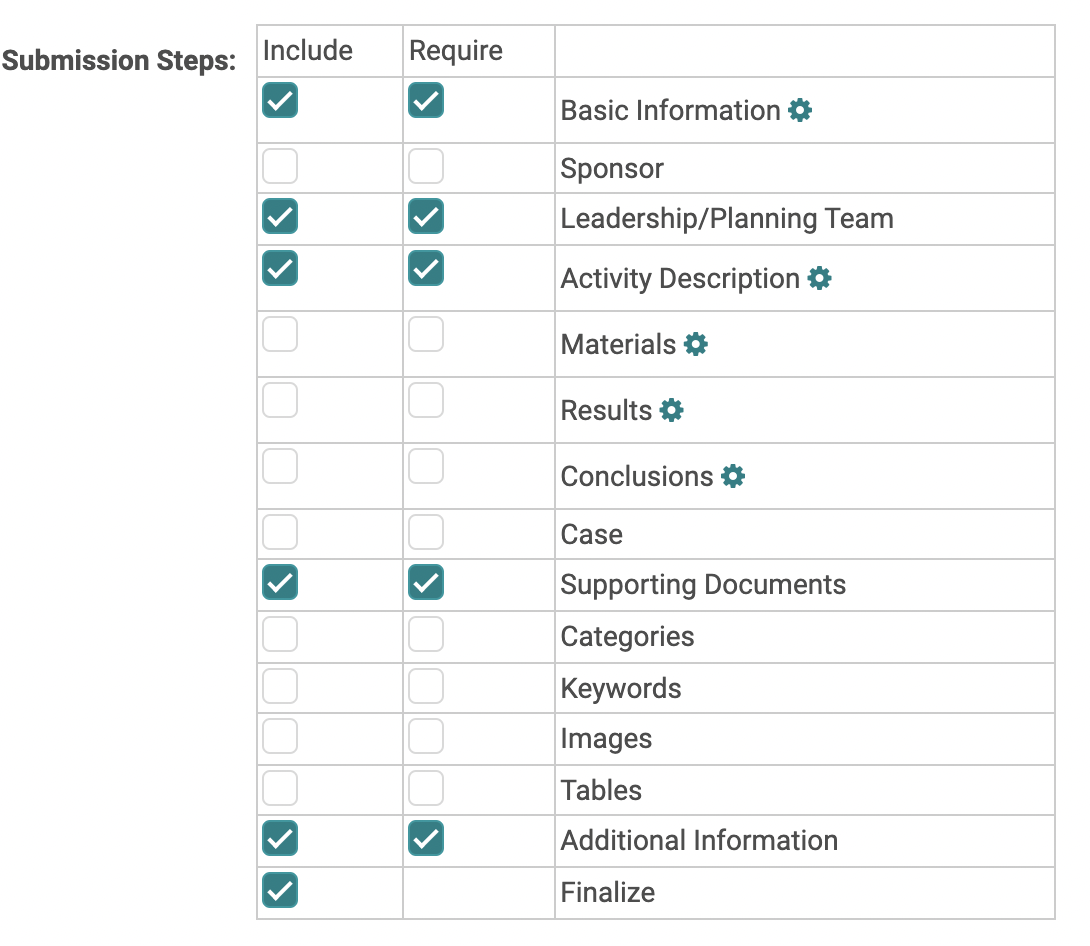
To configure the character count, go to Applications > Proposal Types > click on an application type > under Application Steps you will see a gear icon by any steps that have additional settings available including setting the character count.
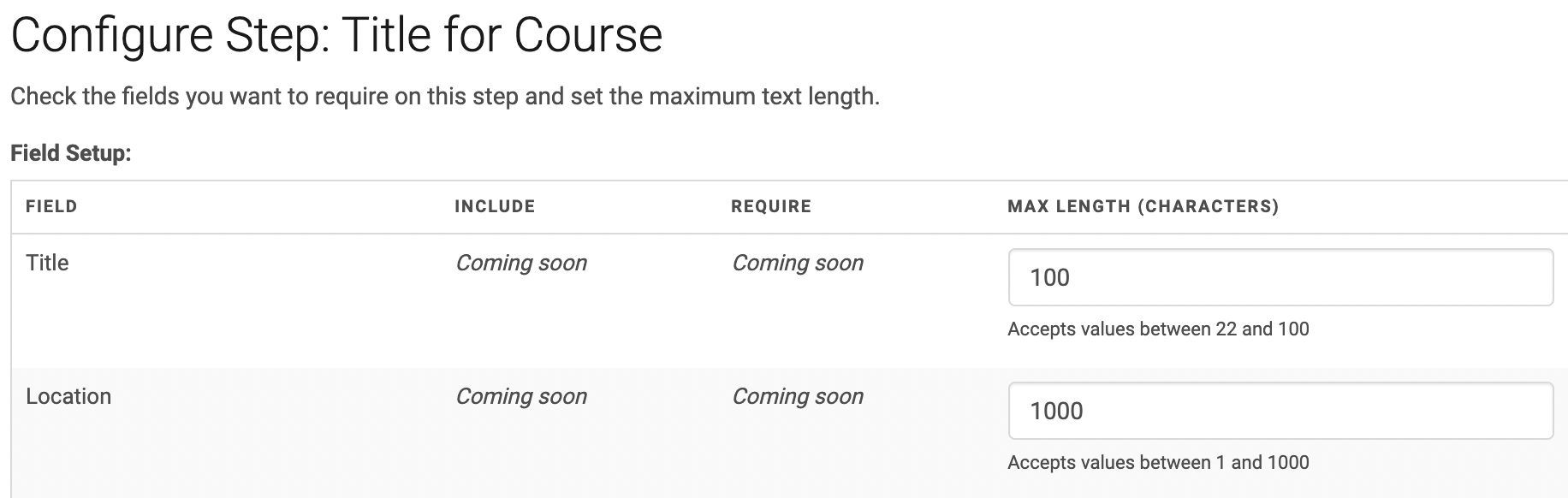
Click the gear icon and enter the max character count you want to allow for this step in the available fields. The note beneath the field will indicate the range in which you can set the limit.
This range is determined by:
- Our system’s default maximum for that field
- If you already have applications with data entered for this step, you will not be able to set the character count limit lower than what someone has submitted. For example, If you have an application with a title that is 50 characters, you will not be able to set the title’s character count limit below 50 characters.
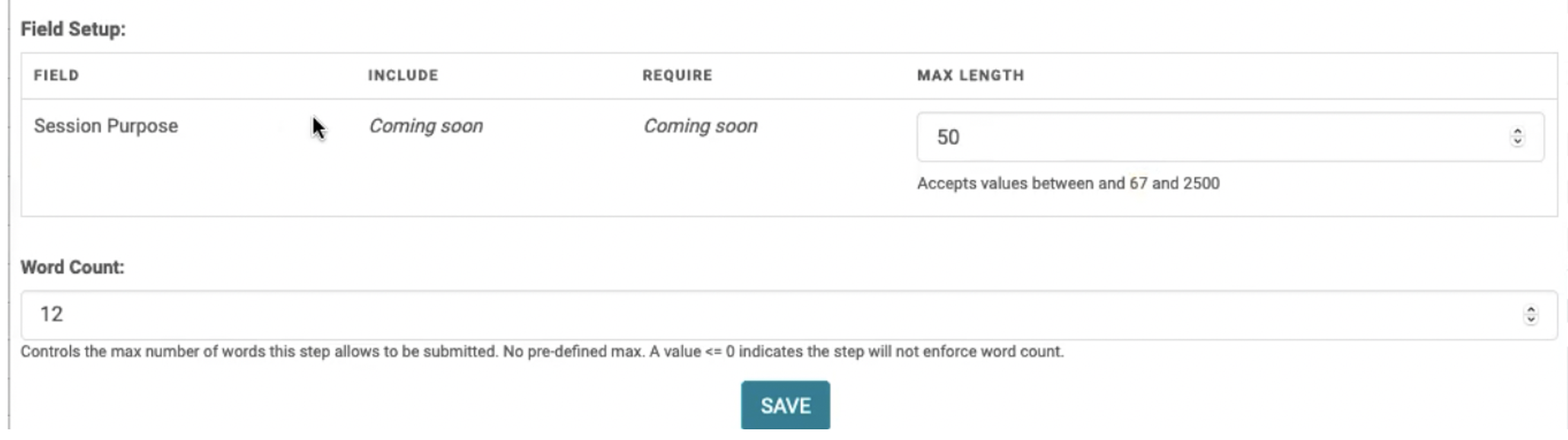
Some steps allow a word count to be set as well. This can also be configured on this screen. If you set the word count field to 0, there will be no word count limit applied.
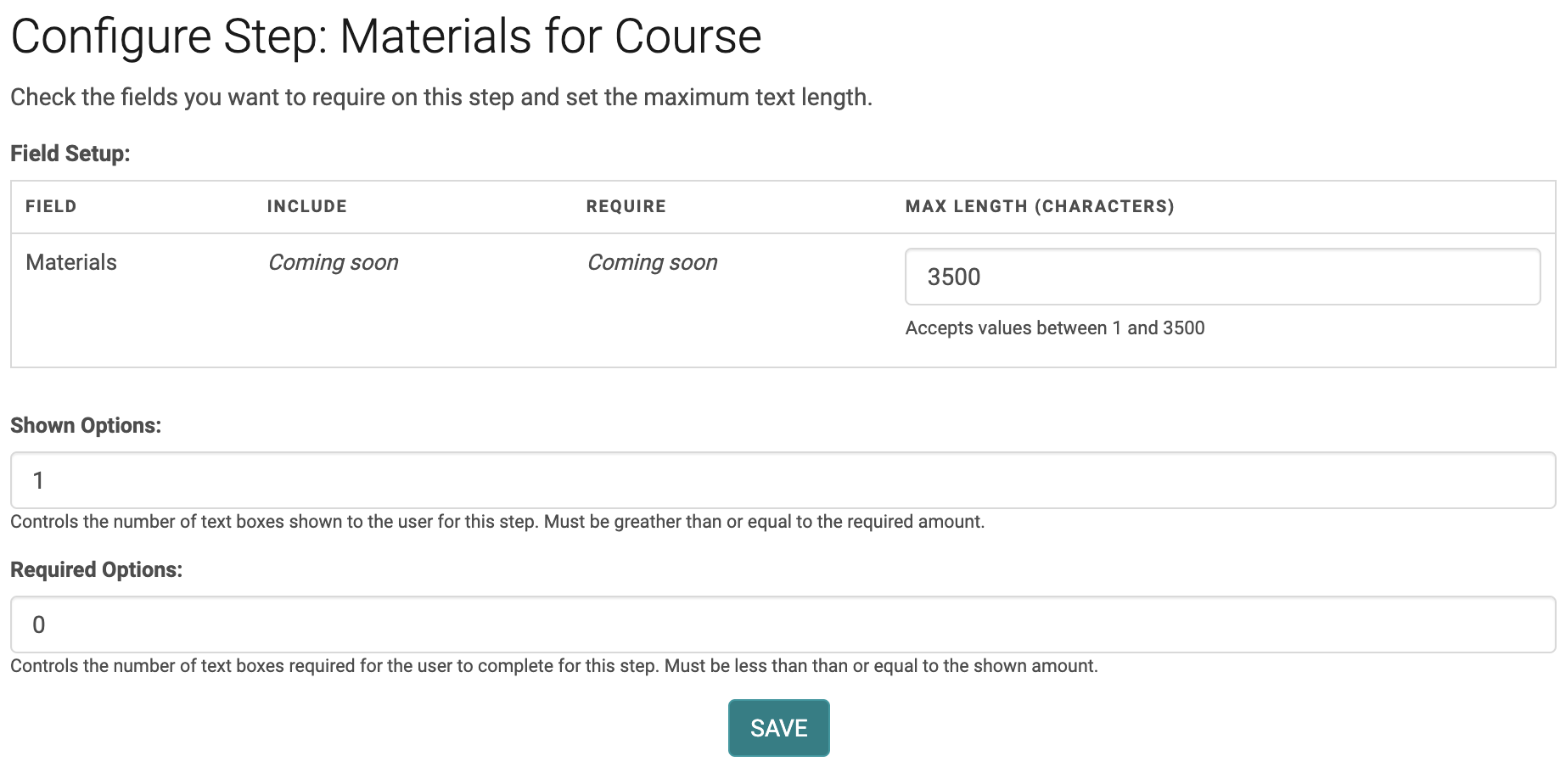
The “Materials” step will also enable you to designate how many “objective boxes” are shown and required.
Related Articles
Application Reports
1. Application Status Report: This report has several filters to know the Application status at several stages like completed and/or reviewed and/or approved. Applications > Primary Reports > Application Status Report 2. Application Detail Score w/ ...Application Change Log Report
The Change Log report logs the updates made on the application's advanced editing page. Note: It is not applicable to linked entities such as form responses, categories, documents, etc. Only field level changes are logged. To view the Abstract Change ...Mark Application Submissions as Incomplete
Go to Submissions or Applications > search for the Submission/Application you wish to un-finalize / mark as incomplete From the search results page, click on the 'Advanced Editing' next to the Submission/Application Title Scroll to the bottom of the ...Add a New Application (from Admin)
Go to People > Search for the person who should be the Submitter of the Application Hover over the arrow in the 'Action' column and click 'View Submissions' Click the option to add a new Application Complete the required steps on all tabs of the ...Add New Application, Activity, Session or Presentation Role
The below document includes the role set up rules for Application and Activity/Session level roles. Go to Applications> Person roles or Events/Sessions > click on 'Person Roles' Click on the 'Add New Role' button Enter the required fields and click ...