Add a New Application (from Admin)
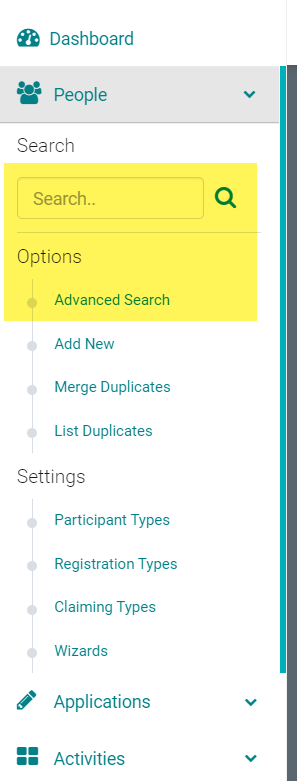
Go to People > Search for the person who should be the Submitter of the Application
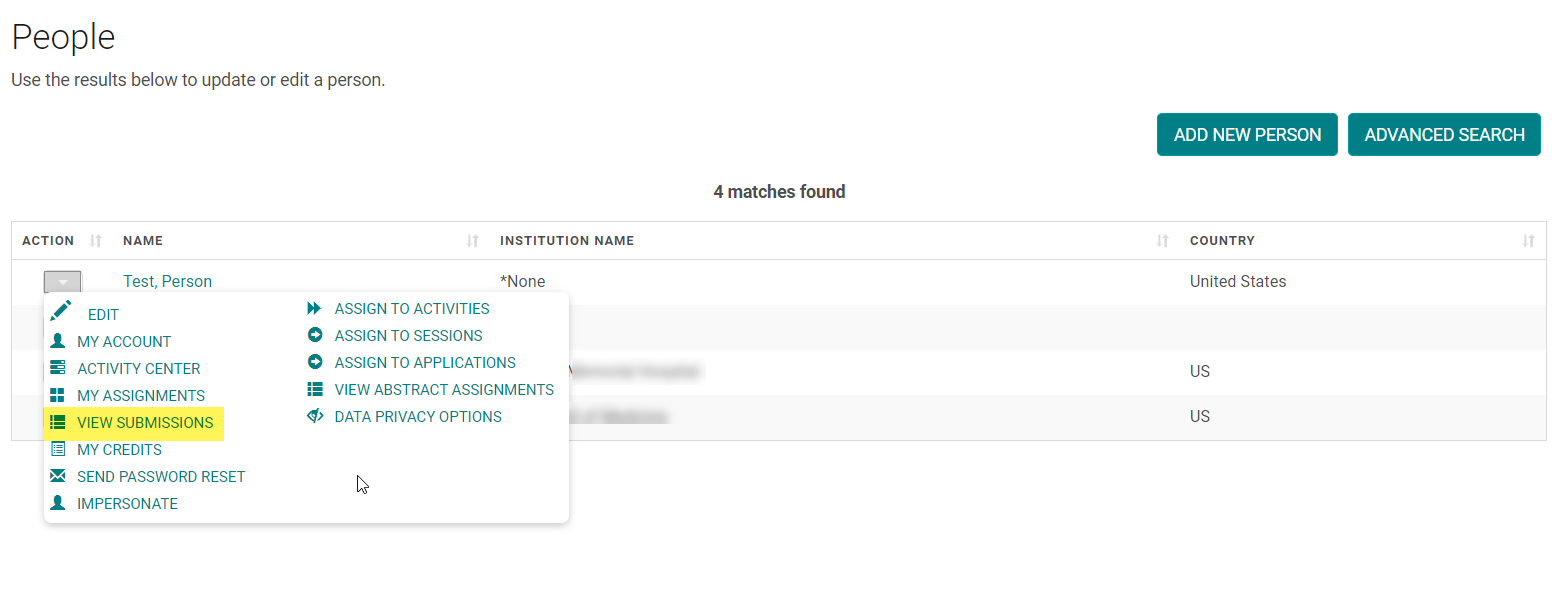
Hover over the arrow in the 'Action' column and click 'View Submissions'
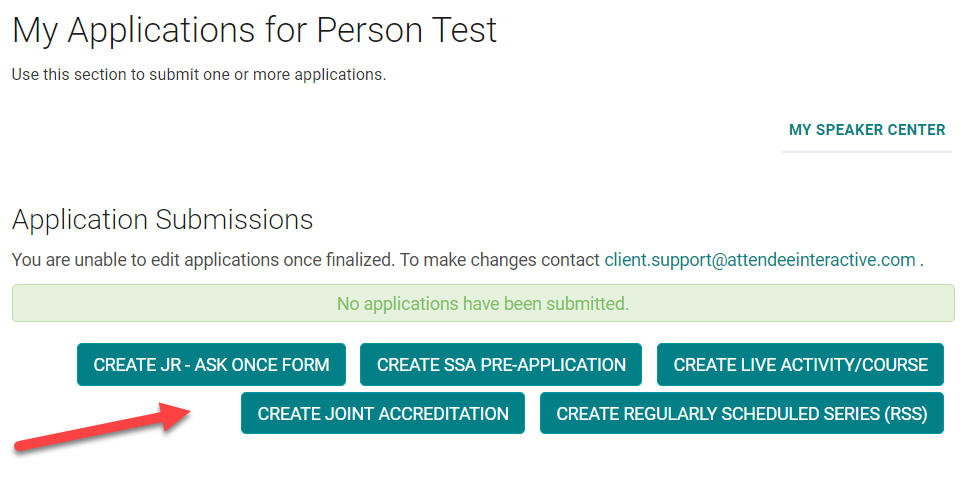
Click the option to add a new Application
Complete the required steps on all tabs of the application and click 'Submit' on the 'Finalize' step
Related Articles
Add New Application, Activity, Session or Presentation Role
The below document includes the role set up rules for Application and Activity/Session level roles. Go to Applications> Person roles or Events/Sessions > click on 'Person Roles' Click on the 'Add New Role' button Enter the required fields and click ...Coordinator Role and Admin rights
As a part of the Activity and Speaker Management, HighMarks system allows Activity Coordinators to share a few of the Admin rights. Client Admin decides on what rights to be granted to their Activity Coordinators. Please review the below ...Add New Admin User Account
Go to Settings > User Accounts Click on 'Add New User Account' Enter the required information and click 'Save' NOTE: Role = Admin - will give a user access to ALL Activities/Events in the system. Role = Standard - will require 'Manage Permissions' to ...Add New Session/Event
Note: Prior to adding a Session you need to add the Activity. Select the Activity you want to add a new Session/Event to using the Activity Switcher Go to Sessions (or Events) and click 'Add New' Field Definitions: Type = Select the type of the ...Add New Menu
Step 1: Go to Web Content > Site Map > Add New Menu Step 2: Complete Appropriate Fields and Click 'Save' Field Definitions: Parent – To be selected if you are creating a submenu. This will determine which main menu the submenu appears under. This can ...