How to Change/Edit Submitter
Step 1: Click on Applications
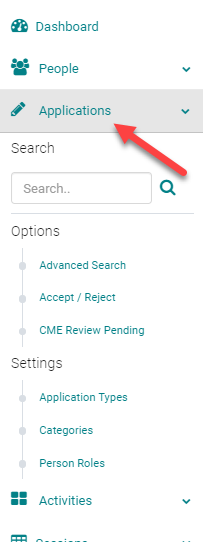
Step 2: Click on the Advanced Editing icon of the Application for which you want to change the Submitter.

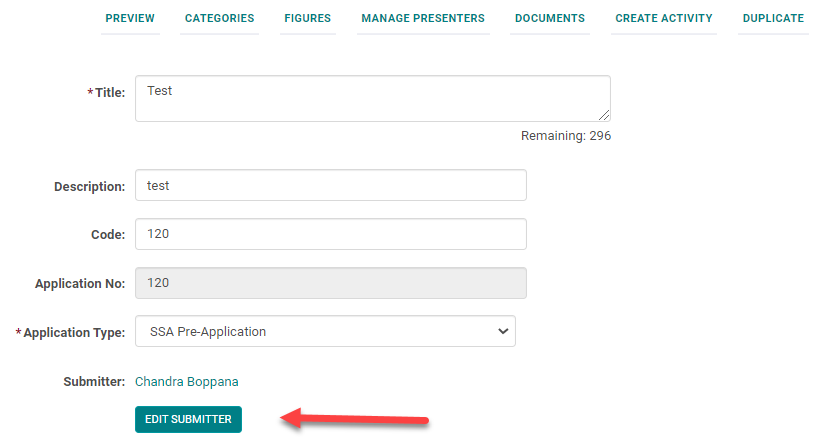
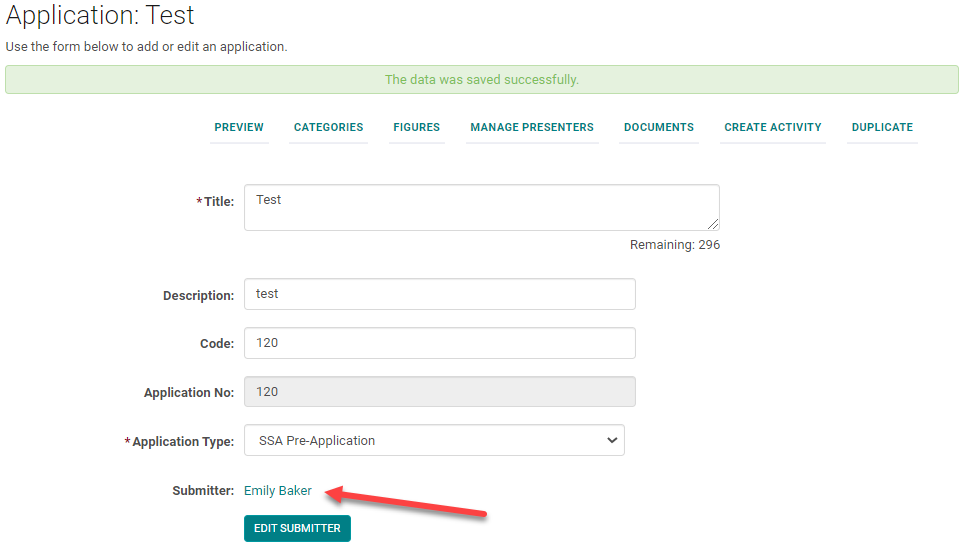
Step 3: Click on Edit Submitter button
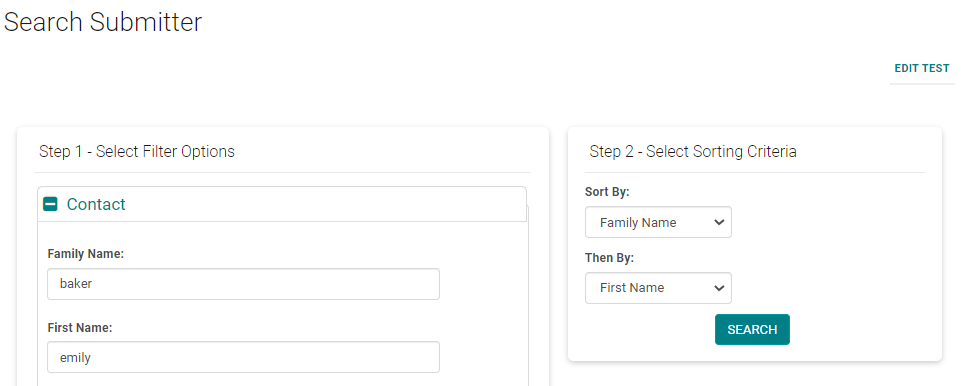
Step 4: Search for the new Submitter by the name
Step 5: Click the Radio button and Click on Assign
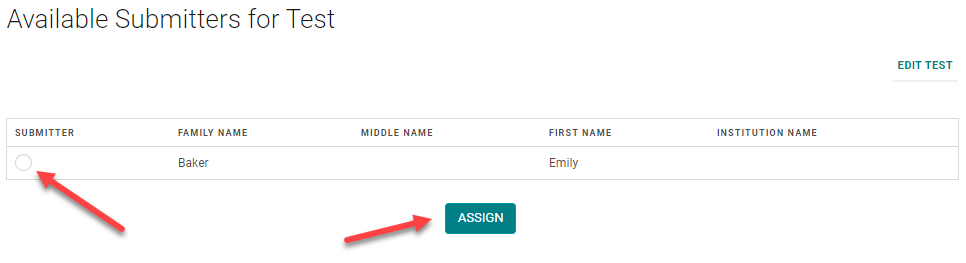
You will see the new Submitter's name - Save the Application.
Related Articles
How to Change/Edit Submitter
Step 1: Click on Applications Step 2: Click on the Advanced Editing icon of the Application for which you want to change the Submitter. Step 3: Click on Edit Submitter button Step 4: Search for the new Submitter by the name Step 5: Click the Radio ...Edit Form Settings
To edit Form Settings, go to Settings > Forms Click on the Form Name (or click 'Add New Form' to build a Form from scratch) Click on 'Edit Form' Edit Form Definitions Form Type There are all kinds of different forms with different uses! The Most ...Edit Form Settings
To edit Form Settings, go to Settings > Forms Click on the Form Name (or click 'Add New Form' to build a Form from scratch) Click on 'Edit Form' Edit Form Definitions Form Type There are all kinds of different forms with different uses! The Most ...Search and Edit Applications
Go to Applications > use the global search box OR click 'Advanced Search' for more options: Click 'Edit Submission' from the 'Action' column Make applicable edits and be sure to save your changesEdit Email Template
Go Settings > Emails Click on the Title of the email template you want to edit Complete the following: Select the appropriate 'Email Type' - most often it is 'Attendee' (a.k.a. People) From Address: This is the address of the account that is being ...